How to Set Up a POS System for Your Business: Step-by-Step Guide
Running a shop without a proper checkout system means slower billing, frequent errors, and no clear picture of your daily sales. Whether you are opening a new retail shop, upgrading a grocery counter, or setting up a restaurant billing station, a POS system makes every transaction faster, cleaner, and easier to track. This guide walks you through exactly how to set one up step by step and explains which equipment you actually need for your type of business.
What Is a POS System?
POS System as a Checkout Setup
A POS system, short for Point of Sale system is the combination of hardware and software that handles everything at your billing counter. It is where your customer pays, where their receipt gets printed, where your inventory updates, and where your daily sales record builds automatically. In its simplest form, it can be a cash register machine with a receipt printer. In a more complete setup, it includes a barcode scanner, label printer, weighing scale, cash drawer, and software that ties everything together.
Why Every Business Needs a Different POS Setup
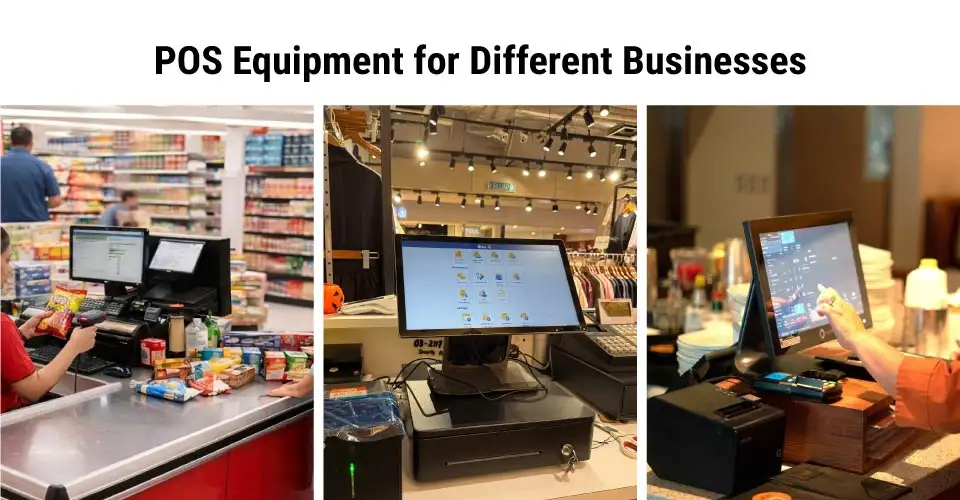
There is no single standard POS setup that fits every business. A small retail clothing shop needs barcode scanning and receipt printing. A grocery shop or fish market needs a weighing scale that feeds directly into the billing system. A pharmacy needs product-level tracking and expiry management. A restaurant needs table billing and kitchen-order printing.
Plan Your POS Setup Based on Business Type
Retail, Grocery, Pharmacy, Restaurant, and Warehouse Needs
Retail and fashion shops primarily need a barcode scanner, a POS printer for receipts, and a cash drawer. If you stock many SKUs, a label printer for product tagging is essential.
Grocery shops and super shops need a weighing scale connected to the billing system, a barcode scanner for packaged items, and a fast receipt printer. Label printers are useful for pre-packaging products with price stickers.
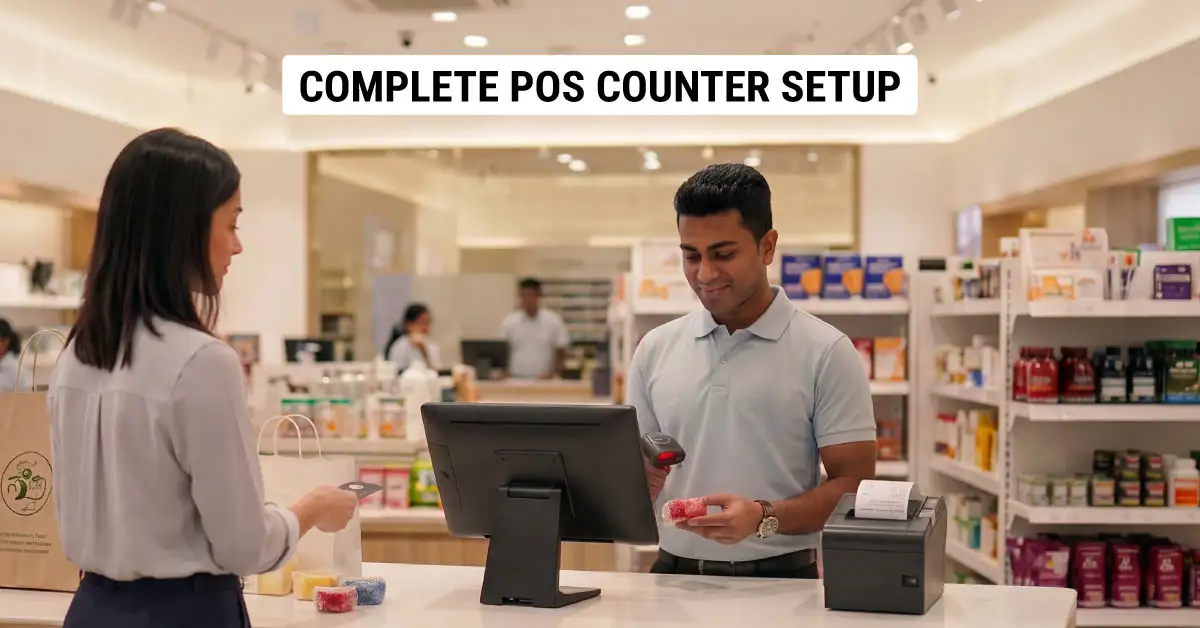
Pharmacies need precise product-level billing, barcode scanning for medicine packs, receipt printing, and often a label printer for patient prescription labels. Cash drawers are standard.
Restaurants and cafes need a billing terminal with table or order management, a POS printer (sometimes two, one at the counter and one in the kitchen), and a cash drawer. Barcode scanning is less relevant here.
Warehouses and distributors need a label printer for carton and shelf labelling, a barcode scanner for stock movement, and a billing terminal for invoicing. Weighing scales matter if goods are sold by weight.
Basic vs Full POS Setup
Not every business needs to start with a full setup. A staged approach works well. Start with what you use every day and expand as your volume grows. Choose the Main POS Hardware
Business Type
Essential Equipment
Optional / Growth Add-ons
Small retail shop
POS terminal, POS printer, thermal paper roll, barcode scanner
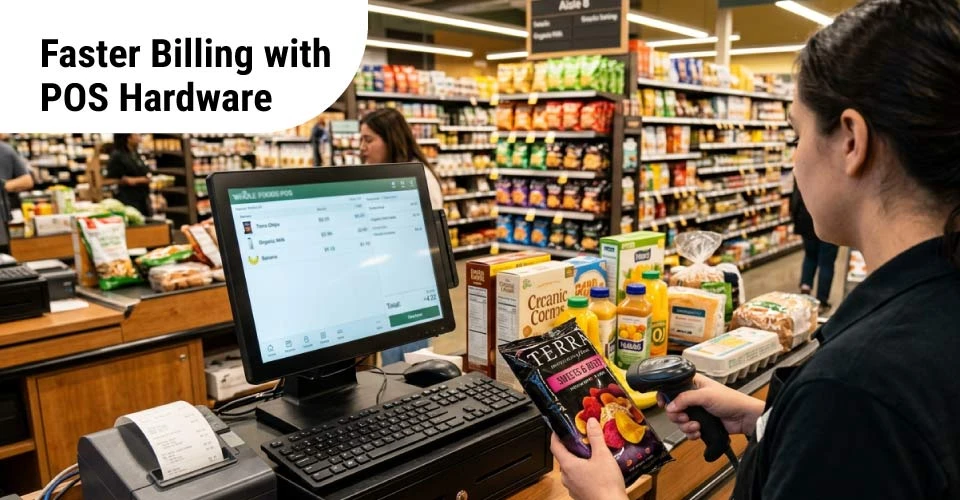
Your POS terminal is the brain of the entire setup. It is where your billing software runs, where your cashier inputs orders or scans products, and where everything connects. For most small to mid-size shops in Bangladesh, this can be a dedicated POS machine, a desktop PC with billing software, or a tablet-based system for lighter setups. Choose a terminal with enough processing speed to handle your daily transaction volume without slowing down during peak hours. Make sure it has USB or serial ports for connecting your printer, scanner, and cash drawer.
Cash Register Machine or Cash Drawer
If your billing volume is simple and you mainly need a fast way to handle cash and print basic receipts, a cash register machine is a straightforward starting point. It handles billing and receipt printing in one unit with minimal setup. For more advanced setups where you run billing software on a separate terminal, a cash drawer that connects directly to your POS printer is the better choice. The drawer opens automatically when a transaction is completed, no separate trigger needed. Make sure the cash drawer you choose is compatible with your POS printer’s RJ11 kick port.
Set Up Receipt Printing and Printer Paper
POS Printer for Bill and Receipt Printing
A POS printer, also called a thermal printer or receipt printer is one of the most used items in your entire setup. It prints customer receipts, order slips, and billing records. Thermal POS printers work without ink: they use heat to print on thermal paper rolls, which makes them faster, quieter, and cheaper to run than inkjet or laser alternatives. When choosing a POS printer, check the paper width it supports (typically 58mm or 80mm), print speed in mm per second, and whether it has a LAN or USB connection for your network or billing computer. For a single-counter shop, a USB-connected POS printer works fine. For a restaurant with multiple terminals or a super shop with more than one cashier station, a network (LAN) POS printer lets multiple terminals share one printer.
Printer Paper and Thermal Paper Roll Compatibility
Using the wrong paper roll is one of the most common and preventable mistakes in POS setup. Your POS printer is designed for a specific paper width, either 58mm or 80mm and using the wrong roll causes paper jams, misaligned printing, and wasted rolls. Always confirm your printer’s paper width before buying printer paper in bulk. Thermal paper rolls also come in different core sizes and roll diameters. Check your printer’s paper compartment dimensions before ordering. Buying paper rolls in bulk reduces per-roll cost significantly for high-volume counters. Stock enough rolls to avoid downtime when a roll runs out mid-shift.
Add Barcode Scanner and Label Printer Where Needed
Barcode Scanner for Faster Checkout
A barcode scanner reads the product barcode and pulls up the item’s price and details in your billing software instantly. This eliminates manual price entry, reduces cashier errors, and speeds up checkout dramatically especially when you stock a large number of products. For most retail and grocery shops, a basic 1D USB barcode scanner handles standard product barcodes perfectly.
If your products also use QR codes, common in pharmacies, electronics shops, and some food packaging, you need a 2D scanner that reads both barcodes and QR codes. Wireless barcode scanners add flexibility for larger floor spaces or warehouse environments where the cashier or stock handler needs to move around. Wired scanners are simpler, more reliable, and cost less for fixed-counter use.
Label Printer for Barcode, Price, and Product Labels
If your products do not come with manufacturer barcodes, or if you repackage goods yourself, you need a label printer to create and print your own product labels. A label printer prints on label rolls, small adhesive sticker sheets and produces barcode labels, price stickers, expiry date labels, product name labels, and shelf tags. This is particularly important for grocery shops that pack loose items, pharmacies that label medicine dispensing packs, and warehouses that label shelves or cartons. Label printers typically connect via USB and work with label design software. Make sure your label rolls match the printer’s label width and core specifications. Using the correct label roll size avoids paper jams and misaligned printing.
Use a Weighing Scale for Weight-Based Selling
Grocery, Fish, Meat, Fruit, and Super Shop Use
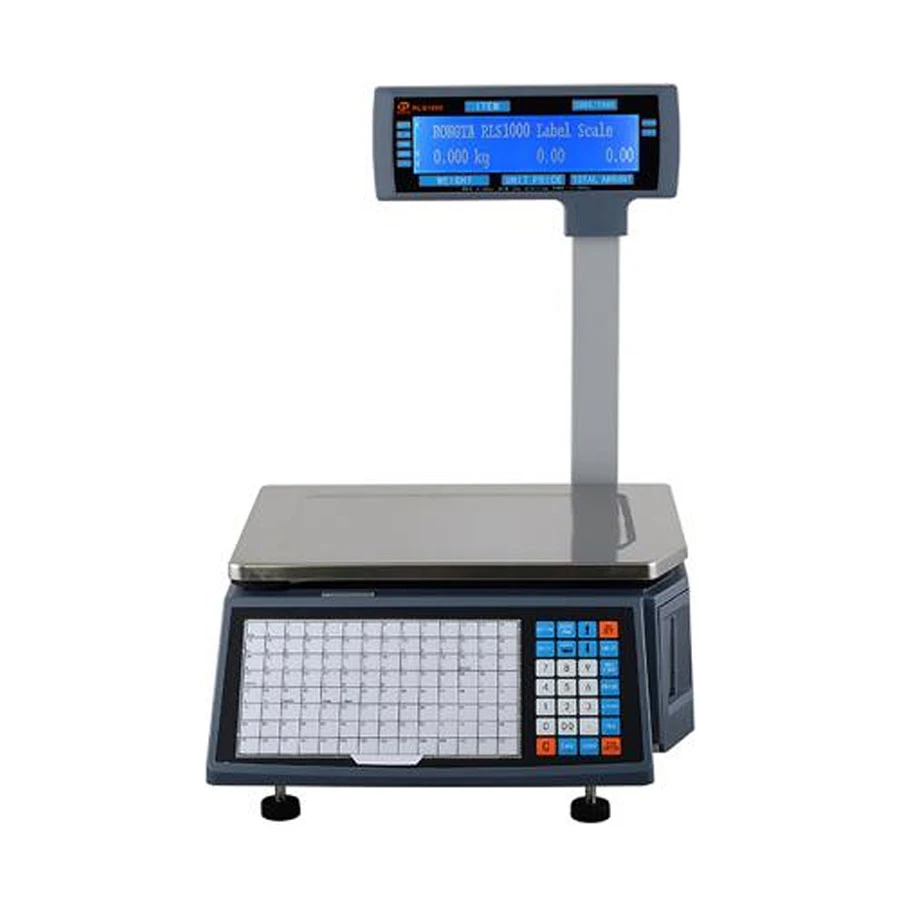
If any part of your business sells products by weight like rice, flour, fish, meat, vegetables, fruit, nuts, or loose packaged goods, a digital weighing scale is not optional. It is a core part of your billing workflow. A POS-compatible weighing scale connects directly to your billing terminal and sends the measured weight to your billing software automatically. The software then calculates the price based on the per-kilogram rate you have set, eliminating manual calculation and the pricing errors that come with it. Super shops that pre-pack and label their own items use label-printing scales that print a barcode sticker with the item name, weight, and price which the cashier can then scan at checkout for fast billing.
Why Weighing Scale Matters for Accurate Billing
Weight errors are one of the most common causes of customer disputes and revenue leakage in grocery and fresh-produce retail. A calibrated digital scale that integrates with your POS system removes human error from the equation. Your customer gets an accurate bill, you get accurate revenue data, and your daily reconciliation becomes clean. Look for a scale that supports the weight capacity your product range requires, typically 5kg, 15kg, or 30kg and confirm it is compatible with your billing software or POS terminal.
These are the errors that cost shop owners time and money after setup is already done.
Wrong paper size for your printer. Using 58mm rolls in an 80mm printer (or vice versa) jams the machine and wastes paper. Always match the roll width to your printer spec before buying in bulk.
Wrong scanner type for your products. If your products or medicines carry QR codes, a 1D-only barcode scanner will not read them. Confirm whether your inventory uses 1D barcodes, 2D barcodes, or both before buying a scanner.
No label plan from day one. If you plan to add products that need labeling later but buy no label printer now, you will end up managing two separate systems. Plan your labeling needs upfront and include a label printer if more than 20% of your inventory needs tagging.
Cash drawer not compatible with POS printer. Not all cash drawers work with all POS printers. Check that the drawer’s kick cable (RJ11) matches the port on your printer. Buying both items from the same supplier reduces this risk.
Buying software before confirming hardware compatibility. Some billing software only works with specific printer brands or scanner models. Confirm software compatibility with your hardware before finalising either purchase.
No stock of spare paper rolls. Running out of thermal paper mid-shift stops your counter. Keep at least one box of backup rolls at all times.
Final Advice
Start With Daily-Use POS Equipment First and Add More as Your Business Grows
You do not need to buy everything on day one. Start with the equipment that affects your daily operations most directly, a reliable POS terminal, a good thermal printer, the correct paper rolls, and a barcode scanner if your products carry barcodes. Get those working smoothly first. Once your billing counter is running cleanly, you can identify the next gap: maybe your cashier is spending too long calculating weights manually, which means a weighing scale is next.
Maybe your stockroom is getting messy because products have no labels, which means a label printer is overdue. Let real operational friction tell you what to add next. A well-planned POS setup does not have to be expensive to be effective. A basic setup that runs without errors every day is worth more than an advanced setup that your team does not know how to use. Build gradually, train your counter staff on each addition, and your checkout operation will grow alongside your business.
Frequently Asked Questions
Can I connect a barcode scanner to any computer or billing software?
Most USB barcode scanners work as plug-and-play devices, they are recognized by your computer as a keyboard input, so they work with almost any billing software that accepts keyboard entry. However, 2D scanners (for QR codes) and wireless scanners may need driver installation. Always test your scanner with your billing software before committing to a large stock purchase.
Is a label printer the same as a POS printer?
No. A POS printer (receipt printer) prints on continuous thermal paper rolls and produces customer receipts. A label printer prints on adhesive label rolls and produces product stickers, price tags, barcode labels, and shelf labels. They serve different purposes and use different consumables. Some businesses need both; others need only one depending on their workflow.
What kind of weighing scale works with a POS system?
You need a digital weighing scale that is POS-compatible, meaning it can connect to your billing terminal via USB, RS-232, or another serial interface and send weight readings directly to your billing software. Standard kitchen or market scales do not have this connectivity. For super shops that pre-label packaged goods, a label-printing scale that generates barcode stickers is the most efficient option.
Can one POS printer serve multiple billing terminals?
Yes, if you use a network (LAN) POS printer. A network-connected thermal printer can receive print jobs from multiple computers or billing terminals on the same network. This is common in restaurants where different order stations send print jobs to a single kitchen printer, and in super shops where multiple cashier counters share a back-office receipt archive printer.








Leave a comment