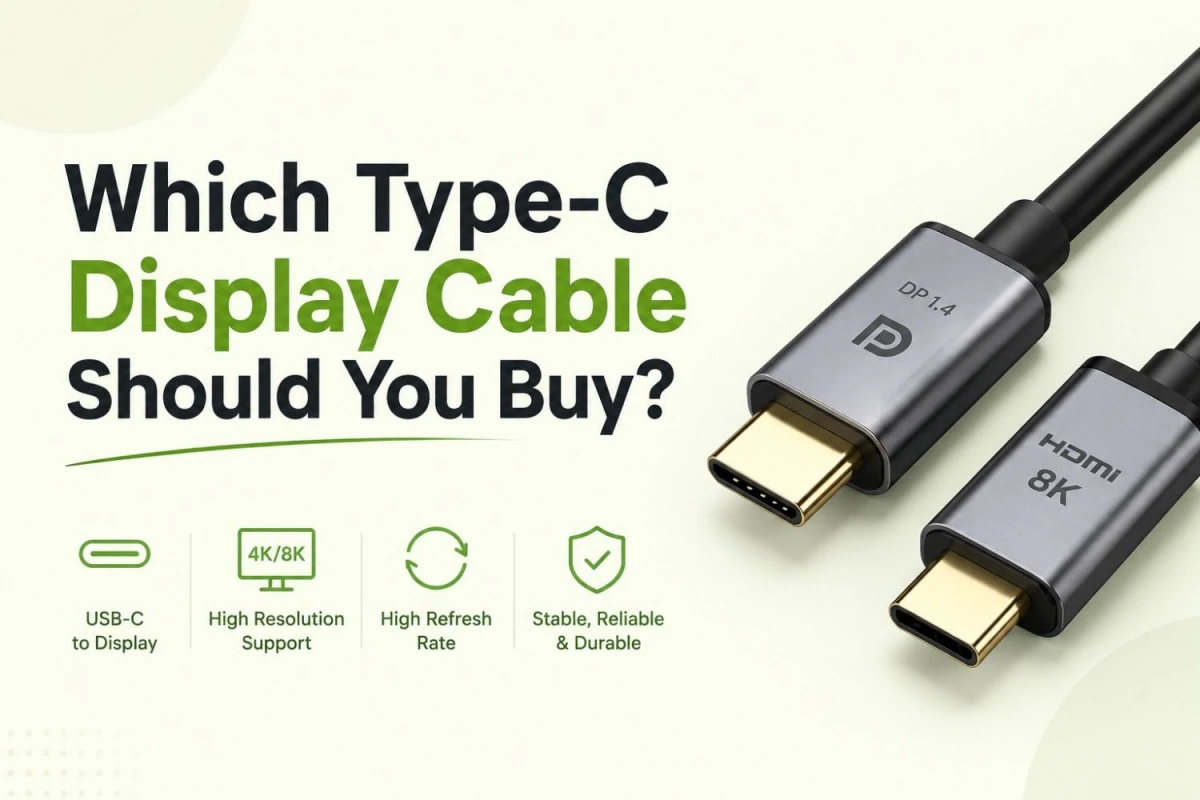
Choosing the right Type-C display cable depends on three things: whether your USB-C port supports video output, what input your monitor or TV has, and what resolution or refresh rate you want to use. Do not buy a Type-C cable only because it says “USB-C” or “fast charging.” A charging cable and a display cable are not always the same.
For most laptop-to-monitor users, a USB-C to DisplayPort cable is the better choice if the monitor has a DisplayPort input. It is especially useful for gaming monitors, 144Hz or higher refresh-rate monitors, 2K QHD monitors, and productivity monitors. If your display only has HDMI, then a USB-C to HDMI cable is the practical option for TVs, projectors, conference rooms, classrooms, and regular office display use.
First Check If Your USB-C Port Supports Display Output
The most important thing to check is not the cable. It is the USB-C port on your laptop, tablet, or phone. The same USB-C shape can support different features depending on the device. Some USB-C ports support only charging and data transfer, while others support video output.
Before buying a Type-C display cable, check the device specification page and look for terms like:
- DisplayPort Alt Mode
- DP Alt Mode
- Thunderbolt 3, Thunderbolt 4, or Thunderbolt 5
- USB4 with DisplayPort support
- USB-C with display output
If your USB-C port does not support display output, a USB-C to HDMI or USB-C to DisplayPort cable will not send video to the monitor. In that case, you may need to use the laptop’s HDMI port, DisplayPort, docking station, or another supported output method.
USB-C to DisplayPort: Best for Monitors and High Refresh Rate
A USB-C to DisplayPort cable is usually the better choice when your monitor has DisplayPort. This is common in gaming monitors, professional monitors, 2K monitors, 4K monitors, and high-refresh displays.
DisplayPort is a strong option for PC and laptop monitor setups because it is commonly used for higher refresh rates and modern monitor features. If you want to use 1080p 144Hz, 1440p 165Hz, 1440p 180Hz, 4K 60Hz, or higher modes, USB-C to DisplayPort is usually the safer direction, as long as your laptop and monitor both support that output.
Choose USB-C to DisplayPort if:
- Your monitor has a DisplayPort input.
- You use a gaming monitor.
- You want higher refresh rate support.
- You use a 2K QHD or 4K monitor.
- You want a cleaner laptop-to-monitor setup for work or gaming.
USB-C to HDMI: Best for TV, Projector, and Simple Display Use
A USB-C to HDMI cable is better when your display has HDMI only. This is common for TVs, projectors, classroom displays, meeting room displays, and many older monitors.
For regular use, a USB-C to HDMI cable with 4K@60Hz support is usually enough. It can handle office work, presentations, movie watching, online classes, extended display use, and general laptop-to-TV connection. If you need 4K@120Hz or 8K support, check both the cable specification and your device capability before buying.
Choose USB-C to HDMI if:
- Your TV, projector, or monitor only has HDMI input.
- You need a simple display cable for office or classroom use.
- You want to connect a laptop to a TV.
- You mostly need 1080p or 4K@60Hz output.
- You do not need high-refresh gaming monitor features.
USB-C to USB-C Display Cable: Good for USB-C Monitors
Some modern monitors have USB-C input. In that case, you may need a USB-C to USB-C cable with video support. Do not use a random charging cable unless the product clearly mentions display support, Thunderbolt, USB4, or DisplayPort Alt Mode compatibility.
USB-C to USB-C display cables are useful when you want a clean one-cable setup. Some monitors can carry display signal, USB data, and laptop charging through one USB-C cable. However, both the monitor and the laptop must support these features.
Do Not Confuse Charging Watt with Display Support
A Type-C cable may support fast charging but still fail to output video. Charging wattage such as 60W, 100W, or 240W tells you about power delivery. It does not automatically confirm display support.
For monitor use, check for display-related terms in the cable listing, such as:
- USB-C to DisplayPort
- USB-C to HDMI
- DisplayPort Alt Mode
- Thunderbolt support
- USB4 support
- 4K@60Hz, 4K@120Hz, 8K@60Hz, or similar display resolution support
Match the Cable with Your Resolution and Refresh Rate
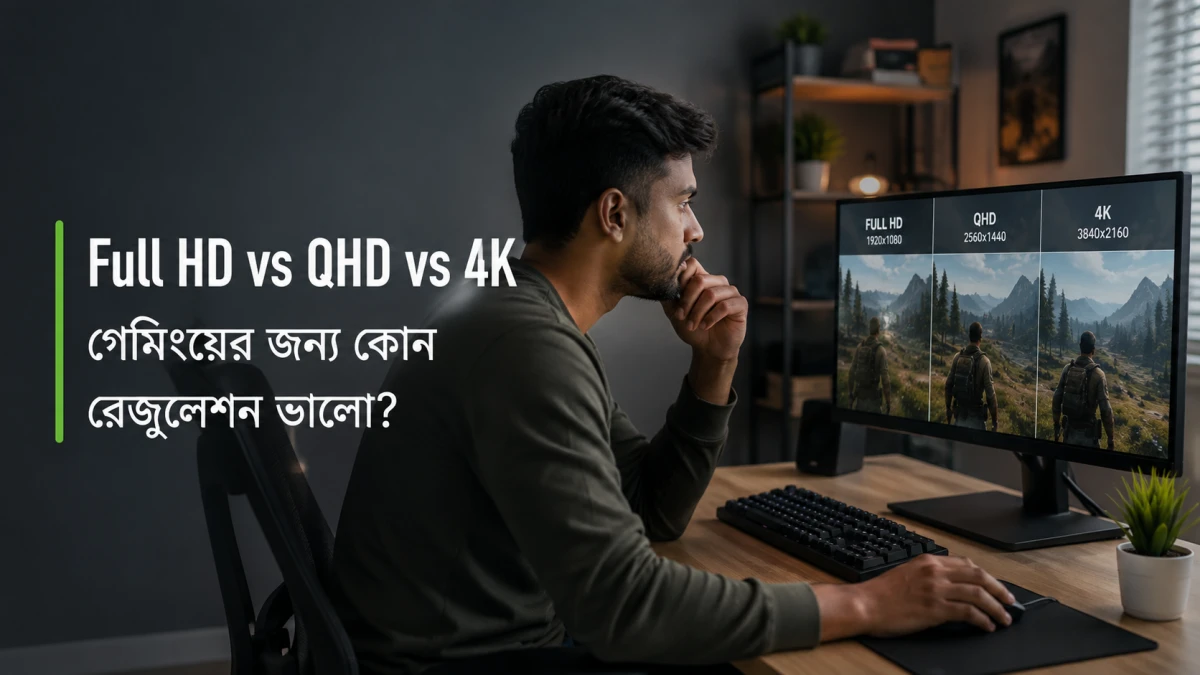
The right cable depends on the display quality you want. For a basic office monitor, almost any reliable 1080p or 4K@60Hz display cable may be enough. For gaming or professional display work, you need to check refresh rate, resolution, and bandwidth more carefully.
- 1080p 60Hz: Basic USB-C to HDMI or USB-C to DisplayPort is usually enough.
- 1080p 144Hz or higher: USB-C to DisplayPort is usually the better choice if the monitor has DP.
- 1440p 144Hz or higher: Prefer USB-C to DisplayPort with clearly stated high-refresh support.
- 4K 60Hz: USB-C to HDMI or USB-C to DisplayPort can work if all devices support it.
- 4K 120Hz or higher: Check the cable, laptop port, GPU, monitor or TV, and display settings carefully.
- 8K: Buy only if the cable and device specifications clearly support 8K output.
Cable Length Also Matters
For most desk setups, 1 meter to 2 meters is a safe cable length. Very long unknown cables can cause signal issues, especially at higher resolution and refresh rate. If you need a longer cable, choose a reliable brand and check the supported resolution at that exact length.
Which Type-C Display Cable Should You Buy?
If your monitor has DisplayPort, buy a USB-C to DisplayPort cable first. This is the best direction for gaming monitors, high-refresh monitors, 2K monitors, and many professional monitors.
If your display has HDMI only, buy a USB-C to HDMI cable. This is the better option for TVs, projectors, meeting rooms, classrooms, and simple monitor setups.
If your monitor has USB-C input, buy a USB-C to USB-C cable that clearly supports video output. Do not use an ordinary charging cable unless the cable listing confirms display support.
Good Buying Rules to Follow
- Check your laptop USB-C port before checking the cable.
- Match the cable with the display input: DisplayPort, HDMI, or USB-C.
- Match the cable with your target resolution and refresh rate.
- Do not buy a charging-only cable for monitor output.
- For gaming, prefer USB-C to DisplayPort when the monitor has DP.
- For TV and projector use, USB-C to HDMI is usually more practical.
- Choose 1 meter to 2 meters for a stable desk setup unless you really need longer length.
Current Product Direction from Ryans
Product stock can change quickly, so it is better to choose by specification first and then check current availability. For a monitor with DisplayPort, look for a USB-C to DisplayPort cable with clear video support, good bandwidth, and a reasonable cable length. For example, UGREEN CM556 USB Type-C to DisplayPort 1 Meter and Yuanxin X-3214 DisplayPort to USB Type-C 1.8 Meter are the type of options to check if they are available in stock.
For HDMI displays, look for a USB-C to HDMI cable that clearly mentions at least 4K@60Hz for regular use. If you need 4K@120Hz or 8K, choose a higher-spec cable only after confirming that your laptop, phone, tablet, TV, or monitor supports that output.
Final Recommendation
The best Type-C display cable for most monitor users is USB-C to DisplayPort, but only if the monitor has DisplayPort and the laptop USB-C port supports video output. It gives better headroom for gaming monitors and high-refresh displays.
For TVs, projectors, and normal office displays, USB-C to HDMI is usually the better and simpler choice. For USB-C monitors, use a proper USB-C to USB-C video cable. Before ordering any cable, check three things: your device USB-C video support, the display input port, and the resolution or refresh rate you want to use.





Leave a comment