
Series
Shape
Panel Surface
Display Size Range (Inch)
Panel Type
Touch Screen
Response Time Range (ms)
Borderless
DVI Port
VGA Port
HDMI Port
DisplayPort (DP)
Mini DisplayPort
USB Type-A
USB Type-B
USB Type-C
Thunderbolt
Headphone Jack
Speaker (Built-in)
Smartphone Apps
App Name
Rotatable
Warranty Info
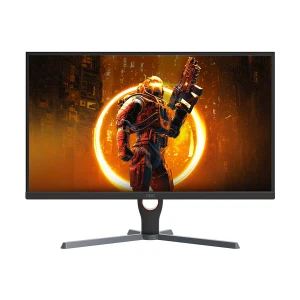
Tilt adjustment monitor price in Bangladesh starts from budget-friendly display options and goes higher for gaming, professional, 4K, OLED, ultrawide, USB-C, Thunderbolt, and high refresh rate models. A tilt adjustment monitor lets you move the screen angle up or down, helping you set a more comfortable viewing position for office work, study, gaming, design, coding, online meetings, and long desk sessions. The right tilt angle can reduce glare, improve eye comfort, and make your monitor easier to match with your chair height and desk setup.
Price Idea
Budget to Premium
Price depends on display size, resolution, panel type, refresh rate, ports, and stand features.
Best For
Comfortable Viewing
Useful for reducing glare, matching eye level, and improving screen angle.
Common Uses
Office, Gaming & Study
Good for workstations, home desks, online classes, gaming, and content work.
Key Specs
Panel, Size, Ports
Check IPS, VA, OLED, FHD, QHD, 4K, HDMI, DP, USB-C, and warranty.
A tilt adjustment monitor has a stand that lets the display move forward or backward from the viewing angle. You can raise the screen face slightly upward or lower it downward depending on your sitting position, lighting, desk height, and chair height. This feature is simple, but it matters for daily comfort because a wrong screen angle can cause glare, neck movement, and eye fatigue during long use.
Moves the screen angle up or down. It helps you reduce glare, improve visibility, and set a more natural viewing position.
Raises or lowers the whole screen. For this feature, explore height adjustment monitor.
Turns the monitor left or right from the stand. For side-to-side screen movement, visit swivel adjustment monitor.
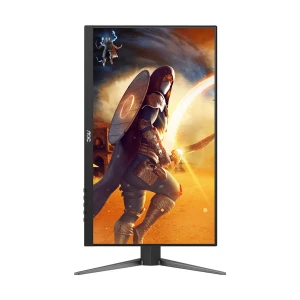
Turns the screen into portrait mode. This is helpful for coding, reading, vertical dashboards, and long documents. See rotation adjustment monitor.
Choose Full HD or QHD, IPS panel, tilt support, eye-care features, HDMI/DP, and a comfortable screen size.
Look for high refresh rate, low response time, HDMI/DisplayPort, sync support, and a stable stand.
Focus on panel quality, color accuracy, QHD or 4K resolution, USB-C, and wide viewing angle.
USB-C, Thunderbolt, built-in speaker, and borderless design can make a laptop desk cleaner.
A simple buying idea based on screen size, resolution, refresh rate, panel type, stand design, and connectivity.
| Budget Level | Price Range | Common Display Type | Best For | What to Check |
|---|---|---|---|---|
| Entry Level | Tk 8,500 to Tk 15,000 | HD, WSXGA, or Full HD basic monitor | Study, browsing, CCTV display, basic office work | HDMI/VGA, screen size, warranty, basic tilt range |
| Standard Office Range | Tk 15,000 to Tk 30,000 | 22-inch to 24-inch Full HD monitor | Office work, online class, home desk, daily productivity | IPS panel, eye-care features, HDMI/DP, built-in speaker |
| Mid Range | Tk 30,000 to Tk 50,000 | 24-inch to 27-inch FHD or QHD monitor | Multitasking, casual gaming, remote work, coding | QHD, refresh rate, response time, USB ports, stand quality |
| Gaming Range | Tk 35,000 to Tk 90,000 | High refresh rate gaming monitor | FPS, esports, racing, action games | 144Hz or higher, 1ms class response, HDMI/DP, sync support |
| Professional Range | Tk 45,000 to Tk 1,10,000 | QHD, 4K, OLED, or color-focused display | Design, editing, coding, creator workflow | Color accuracy, USB-C, Thunderbolt, panel quality, resolution |
| Premium Range | Tk 90,000 to Tk 1,60,000+ | Large screen, OLED, ultrawide, 4K or higher monitor | Creator desk, premium gaming, workstation setup | HDR, panel type, refresh rate, USB-C/Thunderbolt, desk space |
Note: Prices may change depending on model, stock, offer, warranty, and market availability.
Match the monitor with your daily screen time, desk position, and main use.
Tilt adjustment helps set a comfortable screen angle for spreadsheets, documents, meetings, and long desk work.
A tilt monitor is useful for online classes, study, browsing, assignments, and shared family computer setups.
A tilt-supported gaming monitor helps set a better screen angle, while refresh rate and response time handle motion performance.
Designers should choose by color, resolution, panel quality, screen size, and comfortable positioning for longer creative work.
Display size affects viewing distance, desk fit, multitasking space, and comfort. A larger screen gives more workspace, while a compact screen is easier to fit on small desks. For tilt monitors, also check whether the stand is stable and whether the screen angle feels easy to adjust.
Good for small desks, basic office counters, CCTV viewing, study rooms, and budget setups.
Balanced for office work, browsing, online meetings, home use, and Full HD gaming.
Useful for QHD, 4K, multitasking, content work, coding, and gaming without taking too much desk space.
Better for large spreadsheets, editing timelines, immersive gaming, wide dashboards, and premium workstation setups.
Tilt adjustment improves comfort, but the display experience depends on resolution, panel quality, refresh rate, and response time. Compare these specifications carefully before choosing a monitor for work, study, gaming, or creative tasks.
Full HD is suitable for daily use and budget gaming. QHD gives sharper detail on 27-inch screens. 4K monitor options are better for editing, design, and detailed viewing.
IPS is popular for color and viewing angle. VA gives stronger contrast. TN can be used in budget or speed-focused models. OLED offers premium black level, contrast, and fast response.
60Hz to 100Hz works for regular use. 144Hz, 180Hz, 240Hz, and higher refresh rates are better for fast gaming, esports, and smoother motion.
Lower response time helps reduce blur and ghosting in fast scenes. For office work, response time is less important than comfort, clarity, and ports.
A monitor should match the device you use. Desktop users often need HDMI or DisplayPort, laptop users may prefer USB-C or Thunderbolt, and office setups may need built-in speakers or USB hub support.
HDMI is useful for desktops, laptops, gaming consoles, and common display connections.
DisplayPort is useful for gaming monitors, high refresh rate output, and desktop graphics card setups.
USB-C can make laptop desks cleaner when the monitor supports display output, data, or power delivery.
Thunderbolt is useful for selected professional laptops, MacBook setups, docking stations, and high-speed workflows.
VGA and DVI are useful for older PCs, office systems, and legacy devices, but modern setups usually use HDMI or DisplayPort.
Built-in speakers are helpful for online meetings, classes, basic multimedia, and simple office use.
Flat monitors are practical for office work, design, coding, multi-monitor setups, and general productivity.
Curved monitor options can feel more immersive for gaming, movies, and wide-screen productivity.
Slim-bezel or borderless monitors look cleaner and make dual-monitor or multi-monitor setups easier to align.
Rotatable monitors support portrait mode, which helps with coding, reading, vertical content, dashboards, and long documents.
A screen that points too high or too low can make you move your neck more. Tilt helps adjust the display to a more natural position.
Room light and window reflection can affect visibility. Tilting the screen can help reduce glare in many desk setups.
Always match HDMI, DisplayPort, USB-C, Thunderbolt, VGA, or DVI with your desktop, laptop, console, or docking station.
Large screens, curved displays, and wide stands need more desk depth. Check available space before choosing a bigger monitor.
Brand choice depends on display quality, stand design, gaming performance, professional color needs, warranty, and budget. Compare the screen specifications and ergonomic features together because two monitors with similar sizes can feel different during daily use.
Dell, HP, BenQ, ViewSonic, ASUS, LG, and Samsung are popular for office work, productivity, design, and professional display needs.
ASUS, MSI, Gigabyte, ViewSonic, AOC, Lenovo, Dahua, Redragon, and HyperX can fit different gaming needs.
AOC, Dahua, Lenovo, Philips, Xiaomi, PC Power, Value Top, and other brands can be useful for budget and daily-use setups.
A tilt monitor works best when the rest of the desk setup supports the same comfort and performance goal. These related categories can help build a better work, study, gaming, or creator setup.
Compare more display types from the main monitor category if you are still deciding by size, brand, or display type.
For long-hour comfort, compare eye care monitor options with low blue light and flicker-free features.
If the built-in stand is not enough, check monitor accessories such as arms, mounts, stands, and brackets.
For gaming, match the monitor with a gaming mouse, keyboard, headphone, chair, and suitable PC performance.
Ryans helps you compare monitor options by brand, screen size, resolution, panel type, refresh rate, response time, ports, speaker, color, warranty, and ergonomic features before ordering.
| Product Name | Taka/BDT |
|---|---|
| HP M22F 21.5 Inch FHD IPS Monitor #2E2Y3AA/2D9J9AS | 14,500 |
| ASUS VT229H 22 Inch (21.5 Inch Viewable) Full HD IPS HDMI VGA USB Touch Monitor | 47,200 |
N.B. Image may differ with actual product's layout, color, size & dimension. No claim will be accepted for image mismatch.
Product Id:
Sort Options
