Restart the laptop and close applications using unusually high CPU or GPU resources.
✓
Use the laptop on a hard, flat surface and keep every air vent unobstructed.
✓
Switch from maximum-performance mode to Balanced, Quiet, or Best Power Efficiency when full speed is unnecessary.
✓
Clean visible dust from the external vents safely with canned compressed air.
✓
Stop using the laptop for heavy work if the sound is grinding, rattling, or scraping, or if the device is overheating.
A laptop fan becomes louder when the cooling system needs to remove more heat. This commonly happens during gaming, video editing, software updates, large file transfers, virus scans, or when several browser tabs and applications are open. Dust, blocked air vents, a hot room, aggressive performance settings, or a worn fan can also make the noise worse.
The goal is not to make the fan completely silent. A working fan protects the processor and graphics chip. Instead, reduce unnecessary heat and airflow restrictions, then investigate sounds that are abnormal or continue during light use.
Is Loud Laptop Fan Noise Normal?
A smooth rushing-air sound that becomes louder during demanding work is usually a normal cooling response. The fan should become quieter after the workload ends and the laptop cools down. Constant noise at idle, strong vibration, repeated fan errors, or mechanical sounds need closer attention.
What You Hear
What It May Mean
What to Do
Smooth airflow during gaming or editing
Usually normal: the CPU or GPU is producing more heat.
Finish the task, keep the vents clear, and check whether the fan quiets down afterward.
Fan becomes loud for a few minutes after startup
Updates, indexing, antivirus scans, or startup apps may be active.
Wait briefly, then check CPU usage if the noise continues.
Constant loud airflow during light use
A background process, blocked vent, high-performance mode, or cooling problem may be involved.
Check resource usage, power mode, airflow, updates, and diagnostics.
Grinding, rattling, scraping, or clicking
Possible worn bearing, damaged blade, loose part, or obstruction.
Shut down the laptop and arrange inspection. Do not rely on a cooling pad as a repair.
High-pitched electronic sound
It may be coil whine rather than fan noise.
Confirm where the sound comes from before replacing the fan.
Why Laptop Fan Noise Happens
Heavy CPU or GPU Usage
Games, video editing, software updates, antivirus scans, large file transfers, and too many active browser tabs can increase processor or graphics usage. The extra workload creates more heat, so the fan spins faster to cool the laptop. The fan should become quieter after the workload ends.
Dust Buildup Inside the Laptop
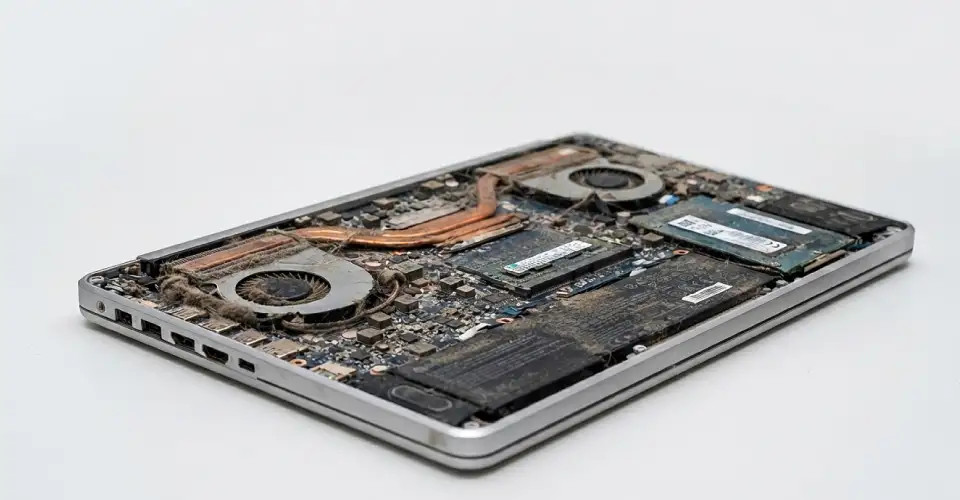
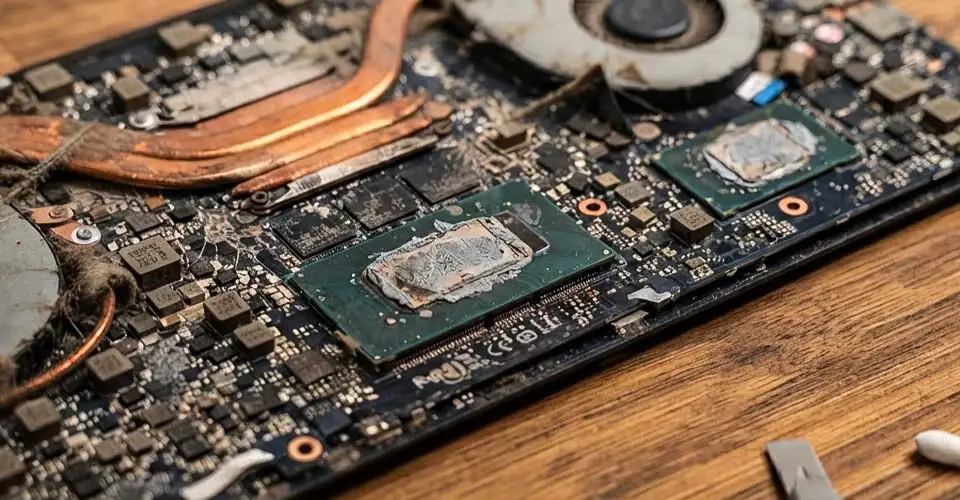
Dust can collect on the air vents, fan blades, and heatsink fins. This restricts airflow and forces the fan to run faster for longer. External vent cleaning may help with visible dust, but heavy internal buildup may require model-specific cleaning by a qualified technician.
Blocked Air Vents or Poor Airflow
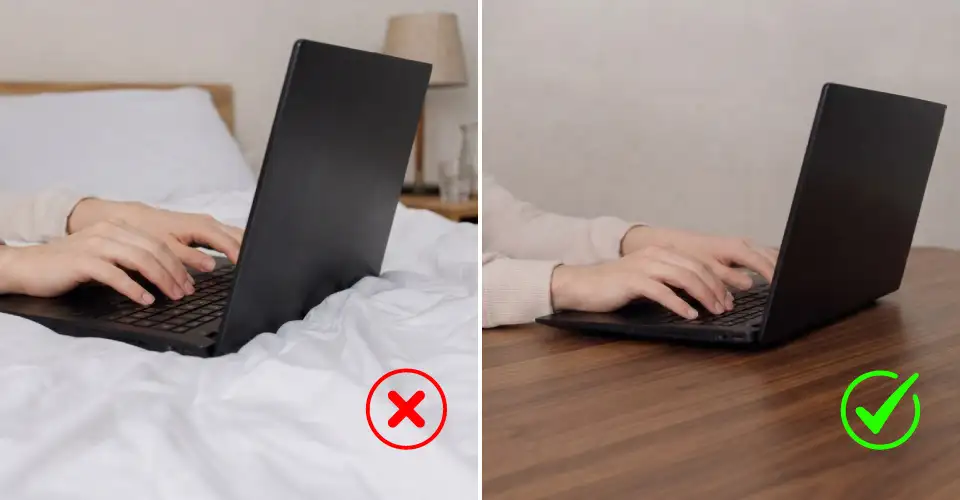
Beds, blankets, sofas, cushions, and other soft surfaces can cover the laptop’s air intakes. Limited space around the side or rear exhaust vents can also trap hot air. A hard, flat surface with clear space around the vents helps the cooling system work more efficiently.
Worn or Damaged Fan
A worn bearing, damaged blade, loose part, or obstruction can cause grinding, rattling, scraping, clicking, or strong vibration. These are mechanical warning signs rather than normal airflow noise and usually require professional inspection.
How to Stop Laptop Fan Noise
Try the following steps in order. Begin with the simple software and airflow checks before considering internal repair.
Restart the Laptop
Save your work and restart the computer. A restart closes temporary background processes and services that may be keeping the processor busy. After startup, give the system a few minutes to finish essential updates and startup tasks before deciding whether the fan is still unusually loud.
Find Apps Using Too Much CPU or GPU
High processor or graphics usage creates heat and makes the fan spin faster. Close only applications you recognize and no longer need. Do not end unfamiliar system processes simply because their names look unusual.
On Windows
Press Ctrl + Shift + Esc to open Task Manager.
Open the Processes tab and select the CPU column to sort by usage.
Save your work, then close unnecessary apps or browser tabs using high resources.
Check the Startup apps tab and disable only nonessential programs you recognize.
On macOS
Open Activity Monitor from Applications > Utilities.
Select the CPU tab and sort by % CPU.
Quit an application only when you recognize it and have saved your work.
Use a Quieter Power or Performance Mode
Maximum-performance settings can allow the processor and graphics chip to use more power, which can create more heat. For normal browsing, office work, or video playback, choose Balanced, Best Power Efficiency, Quiet, Silent, or Whisper mode when your laptop supports it. Return to a performance mode only when demanding work requires it.
Place the Laptop on a Flat Surface
Place the laptop on a firm, flat desk or stand. Beds, blankets, sofas, cushions, and laps can cover bottom air intakes. Keep the rear and side exhaust vents clear, and leave enough space around the device for hot air to escape.
Clean the Air Vents Safely
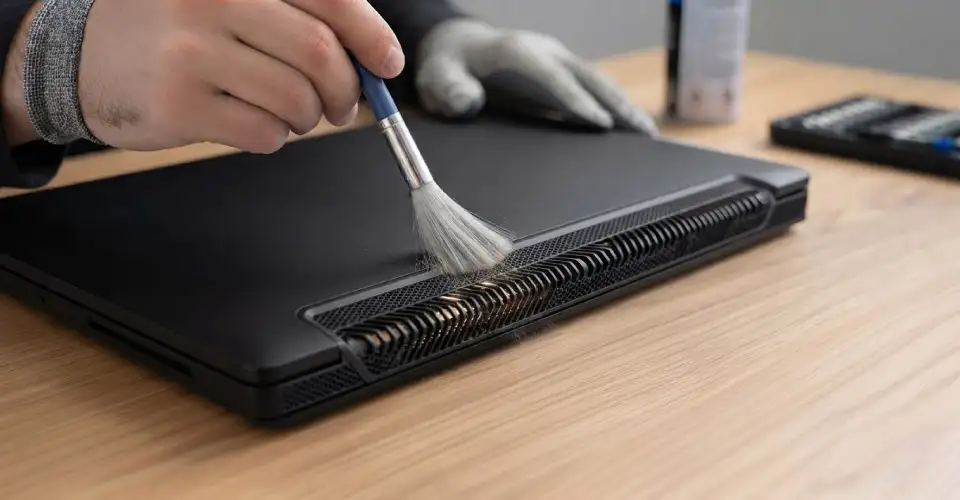
Visible dust can restrict airflow and make the fan work harder. External vent cleaning is safer than opening the laptop, but it still needs care. Follow the laptop manufacturer’s instructions for your model.
Safe Vent-Cleaning Checklist
Shut down the laptop completely and unplug the charger.
Remove the battery only when it is designed to be removable and the service guide recommends it.
Use commercially available canned compressed air and keep the can upright.
Apply short, controlled bursts from the distance stated on the can.
Do not use a household vacuum cleaner, powerful air blower, hair dryer, or your mouth.
Do not spray liquid cleaner into the vents or force tools through the openings.
If the vents are heavily clogged or the fan remains loud after external cleaning, internal dust may be trapped in the fan or heatsink. Internal cleaning should be handled according to the service manual or by a qualified technician, especially when the laptop is sealed or under warranty.
Install Approved Updates
Install pending operating-system and driver updates. If the problem continues, check the laptop manufacturer’s support page for model-specific BIOS, firmware, chipset, graphics, or thermal-management updates. Follow the manufacturer’s update instructions carefully and keep the charger connected when required.
Run the Manufacturer’s Fan or Hardware Diagnostics
Many laptop brands include a built-in diagnostic tool in the BIOS, startup menu, or support application. Run the fan and thermal tests if available. A failed test, fan error, or fan that does not spin normally is a stronger sign that professional repair is needed.
Can a Laptop Cooling Pad Reduce Fan Noise?
A cooling pad or elevated laptop stand may improve airflow beneath a laptop whose internal fan is working normally. Lower temperatures may allow the internal fan to run less aggressively during long gaming, study, or editing sessions. However, a cooling pad cannot repair a grinding fan, replace a failed internal fan, or remove dust trapped inside the heatsink.
For better airflow during long sessions, you can compare compatible laptop cooler options. Choose a size that supports your laptop and does not block its intake vents.
When Cleaning Is Not Enough
Old Thermal Paste or Weak Cooling System
Thermal paste helps transfer heat from the CPU or GPU to the cooling assembly. If it has dried out, been applied poorly, or the heatsink is not making proper contact, the laptop may run hotter and the fan may stay loud. Repasting requires partial disassembly and correct reinstallation of the heatsink. It should usually be handled by a qualified technician. Thermal paste will not fix grinding, rattling, or scraping caused by a damaged fan.
When the Fan May Need Replacement
A fan may need repair or replacement when it produces mechanical noise, vibrates strongly, fails a diagnostic test, stops spinning, or cannot cool the laptop during light work. Continuing to use a failing fan for gaming or other heavy tasks can worsen overheating. Back up important files and arrange professional inspection.
Stop Using the Laptop and Seek Service If
The laptop becomes too hot to touch comfortably during light use.
You hear grinding, scraping, rattling, or repeated clicking.
The fan is not spinning, or the BIOS reports a fan or thermal error.
The laptop repeatedly shuts down, restarts, or loses performance because of heat.
You notice a burning smell, smoke, melted plastic, or visible heat damage.
What Not to Do
Do not block the vents or disable the internal fan to make the laptop quieter.
Do not continue heavy gaming or rendering when the fan is grinding or the laptop is overheating.
Do not use vacuum cleaners, high-pressure compressors, hair dryers, or liquid inside the vents.
Do not open a warranty-covered laptop unless the manufacturer permits user servicing.
Do not install unverified fan-control software that overrides the manufacturer’s safety settings.
Frequently Asked Questions
Why is my laptop fan loud when no programs are open?
Startup apps, operating-system updates, antivirus scans, file indexing, browser extensions, or a stuck background process may still be using the processor. Check Task Manager or Activity Monitor, restart the laptop, and wait a few minutes after startup. If CPU usage is low but the fan stays loud, inspect the airflow and run hardware diagnostics.
Why does the laptop fan become louder while charging?
Some laptops use a higher-performance profile when connected to power, and charging can add heat inside the device. The fan may therefore run faster, especially when gaming, editing, or performing updates at the same time. Try Balanced or Quiet mode when maximum performance is unnecessary.
Is a loud laptop fan normal while gaming?
Usually, yes. Gaming uses the CPU and GPU heavily, so the fan must move more air. The sound should remain a smooth airflow noise rather than grinding or rattling. Keep the vents clear and stop if the laptop becomes excessively hot or shuts down.
Can I turn off the laptop fan to stop the noise?
No. The fan is part of the laptop’s thermal protection. Disabling it can cause overheating, performance throttling, shutdowns, and hardware damage. Reduce the heat source or repair the cooling system instead.
Does a laptop cooler reduce internal fan noise?
It can help when poor airflow beneath the laptop contributes to heat and the internal fan is working correctly. Results vary by laptop design and workload. It will not fix a broken fan, worn bearing, blocked internal heatsink, or dried thermal paste.
Should I replace the thermal paste or the fan?
Choose based on the symptoms. High temperatures with smooth airflow may point to dust, airflow, software load, or thermal-contact problems. Grinding, rattling, vibration, failure to spin, or a failed fan test points more strongly to fan repair or replacement. A technician can diagnose the exact cause.
Final Advice
Start with the least invasive fixes: restart the laptop, check resource usage, choose a balanced power mode, improve airflow, and clean the external vents safely. If the noise is mechanical, the laptop overheats during light work, or diagnostics report a fan problem, stop heavy use and arrange professional service. The best solution is not to silence a healthy fan-it is to remove unnecessary heat and repair any fault that prevents the cooling system from working correctly.








Leave a comment