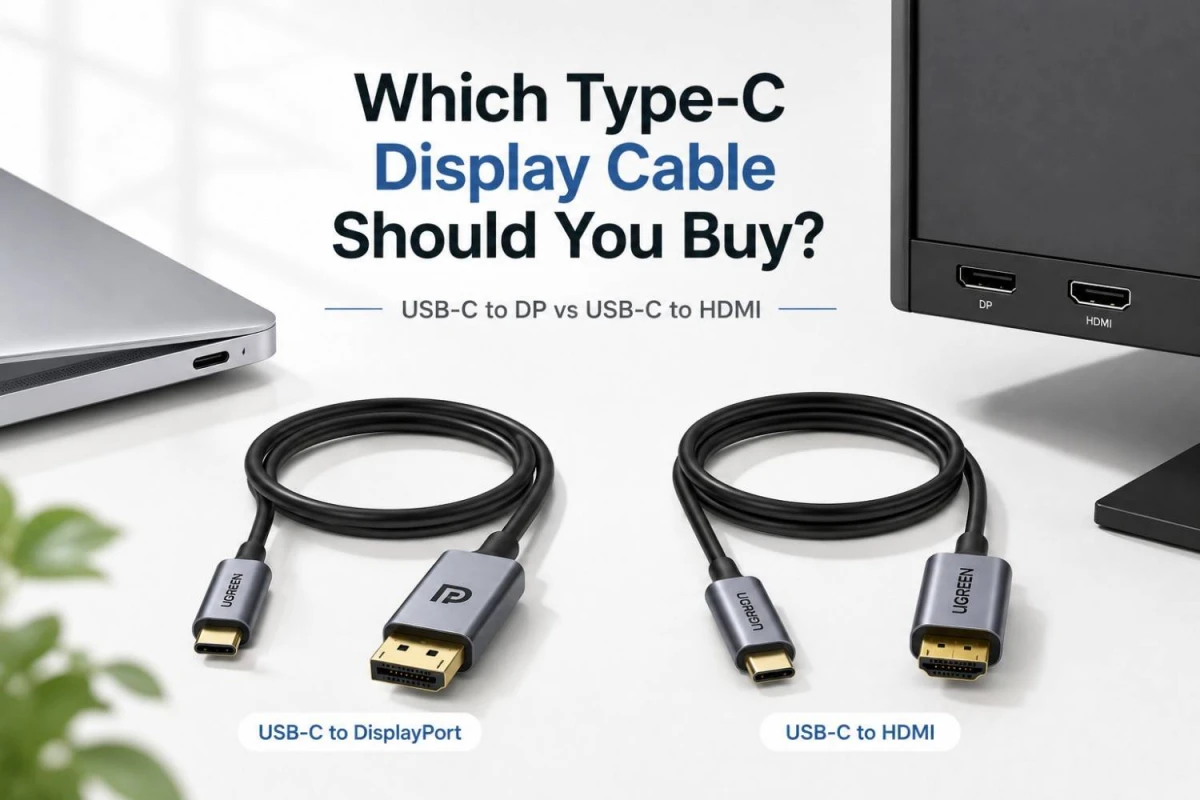
For most laptop to monitor users, the safest Type-C display cable is a USB-C to DisplayPort cable if your monitor has DisplayPort. A current example is UGREEN CM556 USB Type-C Male to DisplayPort Male, which has 8K support, 32.4Gbps bandwidth, and support claims up to 8K@60Hz, 4K@240Hz, 2K@240Hz and 1080p@240Hz. As of 2026-05-06, the 1-meter version was the cleaner pick if available; the 2-meter version may be more convenient for day to day use.
If your monitor or TV only has HDMI, choose a USB-C to HDMI cable. For regular office, class, projector or TV use, UGREEN 50570 USB Type-C to HDMI 1.5m is enough because it supports up to 4K@60Hz. If you want a higher ceiling for a newer TV or high-refresh display, UGREEN CM565 USB-C to HDMI is the stronger option because the Ryans listing mentions 8K@60Hz and 4K@120Hz support.
Important Note: a USB-C charging cable is not automatically a display cable. Many cheap Type-C cables can charge or transfer basic data but cannot output video.
First Check Your Laptop Port
Before choosing the cable, check the laptop specification page. Look for any of these words near the USB-C port:
- DisplayPort Alt Mode
- DP Alt Mode
- Thunderbolt 3, 4 or 5
- USB4 with DisplayPort support
- USB-C with DisplayPort / Power Delivery combo
VESA’s DisplayPort over USB-C documentation explains that DisplayPort Alt Mode lets a USB Type-C connector carry DisplayPort audio/video. This is why one USB-C port can connect to a monitor through a USB-C to DisplayPort or USB-C to HDMI adapter cable. But if your laptop’s USB-C port is only for charging/data, a display cable will not magically enable video output.
Usb-c to Displayport is Usually the Better Monitor Cable
If your monitor has DisplayPort, go for USB-C to DisplayPort first. This is especially true for gaming monitors, high-refresh 1080p/1440p monitors and newer productivity monitors.
Why? DisplayPort is the native path behind most USB-C display output. VESA’s FAQ says DisplayPort Alt Mode over USB-C can use adapters and adapter cables to connect to DisplayPort, HDMI, DVI and VGA displays. In practical buying terms, USB-C to DisplayPort usually gives fewer refresh-rate surprises than cheap USB-C to HDMI cables.
A good example: UGREEN CM556 USB-C to DisplayPort is listed by Ryans with 32.4Gbps bandwidth and refresh-rate support up to 4K@240Hz, 2K@240Hz and 1080p@240Hz. That makes it a better gaming-monitor choice than a basic 4K@60Hz HDMI cable, assuming your laptop and monitor both support the target refresh rate.
Usb-c to HDMI is Better for TV, Projector and Simple Monitor Use
If the display only has HDMI, buy USB-C to HDMI. This is the more common choice for TVs, projectors, conference rooms and older monitors.
For normal use, UGREEN 50570 USB-C to HDMI 1.5m is enough. Ryans lists it with 4K@60Hz, HDMI output, USB Type-C input, HDCP 1.4/2.2 and 1-year warranty. This is suitable for 1080p monitors, 4K TV at 60Hz, presentations and extended display work.
If you are buying for a high-refresh 4K TV or want more future room, UGREEN CM565 USB-C to HDMI is the better class of cable. Ryans lists it as an 8K cable with 8K@60Hz and 4K@120Hz support. Again, the cable alone is not enough: your laptop USB-C port, GPU, OS setting, and display must all support that mode.
Do Not Confuse Charging Watt With Display Support
USB-C is confusing because the same shape can mean many things. A Type-C cable may support:
- only charging
- charging plus USB 2.0 data
- fast data transfer
- DisplayPort Alt Mode video
- Thunderbolt/USB4 video and data
- higher Power Delivery such as 100W or 240W class charging
USB-IF compliance updates mention that 100W USB-C to USB-C cables were replaced by 240W USB-C to USB-C cable definitions under the USB Type-C Cable and Connector Specification Release 2.1. That matters for charging powerful devices, but it does not automatically tell you the cable is good for monitor output. For display, the listing must clearly mention video resolution, DisplayPort, HDMI, Thunderbolt, USB4 or DP Alt Mode support.
What I Would Buy by Use Case
For a gaming monitor with DisplayPort: buy USB-C to DisplayPort, ideally an 8K/DP 1.4-class cable such as UGREEN CM556 if available. This gives better headroom for 1080p/1440p high-refresh displays.
For a 4K TV or projector: buy USB-C to HDMI 4K@60Hz such as UGREEN 50570. It is simpler and usually enough.
For a newer 4K 120Hz TV: buy a higher-end USB-C to HDMI cable such as UGREEN CM565, but only after checking that the laptop supports that output.
For a monitor that has USB-C input: you may need USB-C to USB-C with video support, not an ordinary charging cable. Check for Thunderbolt/USB4/display capability in the cable listing.
For a desktop graphics card: do not assume the motherboard USB-C port outputs the GPU display. Most desktop GPU display output should come from the graphics card’s HDMI or DisplayPort port unless your setup specifically supports USB-C display routing.
Buying Checklist
- Check laptop USB-C video support first.
- Match cable end to monitor input: DisplayPort or HDMI.
- Match resolution and refresh rate: 1080p 144Hz, 1440p 165Hz, 4K 60Hz, 4K 120Hz, etc.
- Keep cable length reasonable; 1m to 2m is safer than very long unknown cables.
- Avoid listings that say only “charging cable” or “data cable” for monitor use.
- For gaming, prefer a cable with clearly stated bandwidth and refresh-rate support.
Final recommendation
If you just said “Suggest type c display cable” and did not mention your monitor model, my default recommendation is this: buy a USB-C to DisplayPort cable if the monitor has DP.
If your display has only HDMI, choose UGREEN 50570 for 4K@60Hz regular use, or UGREEN CM565 if you specifically need 4K@120Hz or 8K-class support. Before ordering, confirm that your laptop USB-C port supports DP Alt Mode or Thunderbolt/USB4 video. That one check saves the most money and frustration.






Leave a comment