On this page 12 sections
Key takeaways
- Choose for the person connecting: a solo technician and a multi-user helpdesk need different license scopes.
- Managed devices are not concurrent sessions: having many PCs in your address book does not mean everyone can connect at once.
- Check renewal and add-ons: review the license period, permitted users, and connection capacity before ordering.
Quick Answer: AnyDesk or TeamViewer for Business?
ANYDESK
Choose AnyDesk if you mainly need remote access to office computers, file transfer, and basic IT support. You can start with a single-user license and move to a higher plan when your work requires more connections or administration features.
TEAMVIEWER
TeamViewer is worth considering if your IT team needs multiple licensed accounts, centralized device management, and reporting tools. Its Premium and Corporate licenses cover larger teams, but you still need to check how many technicians can connect simultaneously.
What AnyDesk and TeamViewer Actually Do
Both are remote access software platforms that let you connect to another computer over a network. You can troubleshoot software problems, transfer files, restart supported devices, and provide remote support without visiting the computer.
Remote access
Usually means working on your own office PC while away.
Remote support
Means connecting to someone else's computer to fix a problem.
With attended access, someone at the remote computer approves or starts the session. With unattended access, you can connect to a computer without anyone being present, provided the device and access permissions are configured correctly.
AnyDesk vs TeamViewer Comparison
| Your Situation | Choose AnyDesk | Choose TeamViewer | What to Check |
|---|---|---|---|
| Freelancer supporting clients | Solo | Business | User and device limits |
| Accessing your office PC | Solo | Business | Unattended access and device limits |
| Small internal IT team | Standard or Advanced | Premium | Licensed users and connections |
| Several unattended PCs | Standard or Advanced | Premium or Corporate | Managed-device limits |
| Multiple technicians | Advanced | Premium or Corporate | Simultaneous connection limits |
| Large corporate helpdesk | Advanced or a suitable larger plan | Corporate | Deployment and reporting |
The Most Important Difference Is the License, Not the App
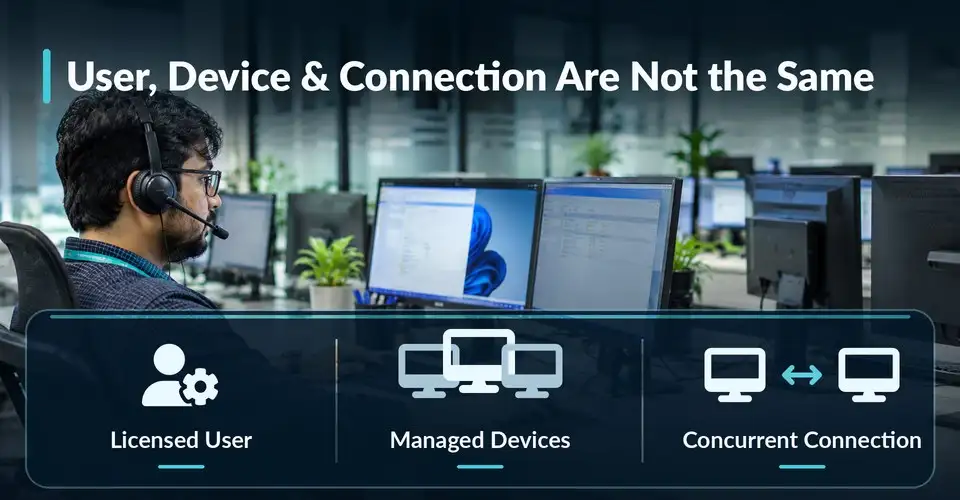
Both AnyDesk and TeamViewer can handle remote support. But the number of licensed users, managed devices, and simultaneous connections varies between plans. Before choosing, think about how many technicians need access and how many computers they support.
- Licensed users: AnyDesk Solo and Standard have 1-user licenses, while Advanced covers 2 users. TeamViewer Business covers 1 user, Premium 15 users, and Corporate 30 users.
- Managed devices: AnyDesk Solo supports up to 100 managed devices, while Standard supports up to 500. TeamViewer Business supports up to 200, Premium up to 300, and Corporate up to 500 managed devices.
- Concurrent connections: TeamViewer Corporate supports three concurrent sessions. AnyDesk also has additional concurrent-user licenses for Standard and Advanced. For other plans, confirm how many technicians can connect at the same time.
For example, your office may have five technicians, but that does not mean all five can start remote sessions together. If several people handle support requests at once, the connection limit matters just as much as the user count.
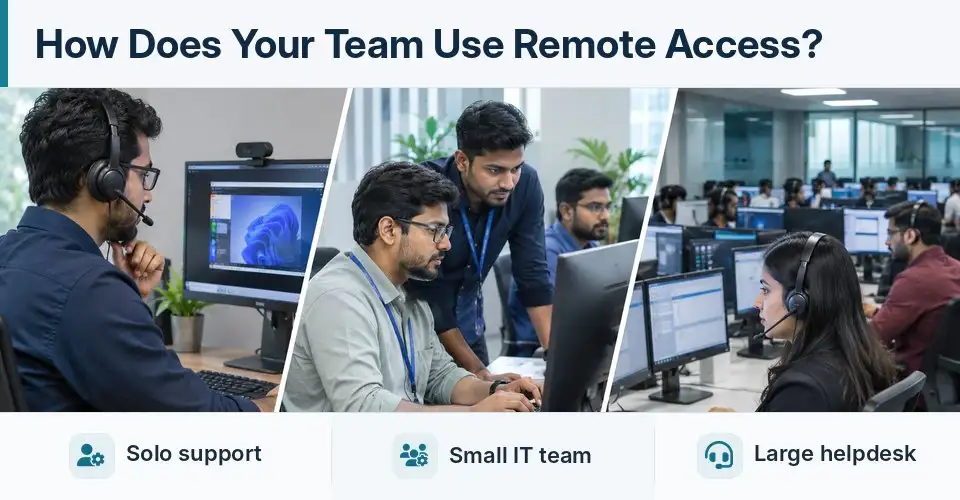
Which Fits a Solo IT Professional or Freelancer?
If you work alone and mainly access an office PC or support clients remotely, AnyDesk Solo is a practical starting point. Its 1-user, 1-year license supports up to 100 managed devices and allows login from three devices.
ONE-PERSON REMOTE SUPPORT
AnyDesk Solo
A sensible starting point for a freelancer who handles remote access and client support alone.
TeamViewer Business is another option. It supports one licensed user and up to 200 managed devices. If you regularly connect to several office or client computers, compare the device allowances, required features, and license costs before choosing.
INDIVIDUAL REMOTE MANAGEMENT
TeamViewer Business
A single-user option when you need to manage more remote computers and compare TeamViewer features.
There is no reason to pay for a large-team license when you are the only person handling remote access.
Which Fits a Small Business or IT Team?
If you manage computers for a small business, think about how many employees need IT support and whether you need access to their computers after working hours.
AnyDesk Standard is suitable when one technician manages several office computers. Its 1-user license supports up to 500 managed devices and includes features such as user management, session logging, and Wake-on-LAN. If two technicians need licensed access, compare it with AnyDesk Advanced.
SMALL-OFFICE IT
AnyDesk Standard
For one technician managing many office computers, with business administration features.
For a team with several technicians, TeamViewer Premium may be a better fit. It covers 15 licensed users and up to 300 managed devices, along with centralized device management and reporting features.
MULTI-USER IT SUPPORT
TeamViewer Premium
For several technicians who need centralized device management and reporting.
But don't decide by the number of users alone. If two or more technicians regularly connect to different computers at the same time, make sure the license has enough connection capacity.
Which Fits a Larger Helpdesk or Organization?
If your IT team manages computers across several branches, you need more than basic remote access. Multiple technicians may need to work at once, administrators need control over access, and support activities may need to be recorded.
AnyDesk Advanced includes two licensed users and additional administration features. For a larger team, TeamViewer Corporate supports 30 licensed users, up to 500 managed devices, and three concurrent sessions.
ADVANCED ADMINISTRATION
AnyDesk Advanced
For technical teams needing more administration options and deployment capabilities.
LARGER HELPDESK TEAMS
TeamViewer Corporate
For teams across branches that need deployment, reporting and simultaneous support.
Multiple Technicians Working Together
Suppose your IT team handles several support requests at the same time. One technician is fixing a software issue, another is accessing a branch computer, and a third is helping an employee remotely.
In this situation, you need enough simultaneous connections to keep everyone working. TeamViewer Corporate supports three concurrent sessions. If you're considering AnyDesk, check the connection capacity of your selected license and whether you need an additional concurrent-user license.
User Management, Deployment and Reporting
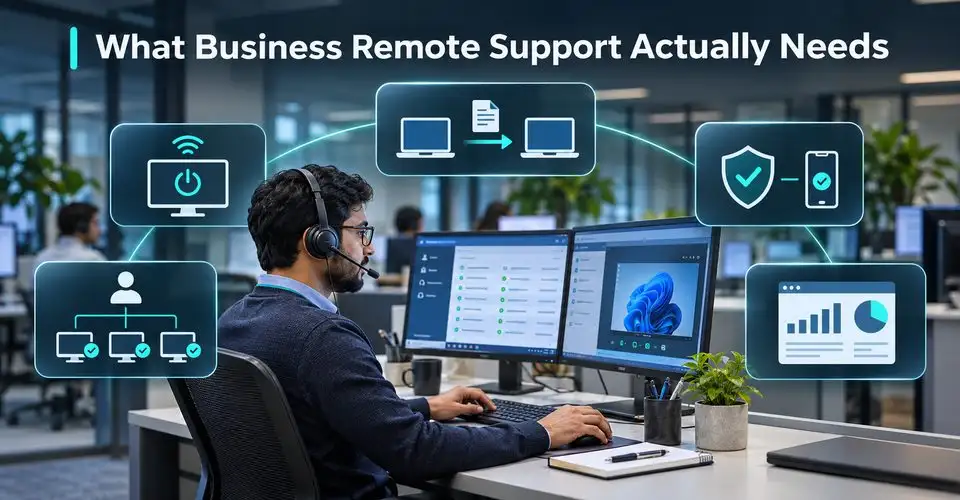
If your company manages many computers, manually configuring every device can take time. Features such as central user management, group policies, and mass deployment can make the work easier.
AnyDesk Advanced includes session logging, group policies, and mass deployment options. TeamViewer Corporate includes access reporting and mass deployment.
These features are useful when you manage computers across different offices. But if you only support a few devices, you may not need a license with advanced administration tools.
Remote Access Features That Matter in Daily Work
File Transfer and Remote Printing
File transfer lets you move documents between connected computers. For example, you can retrieve a report from your office PC while working from home.
Remote printing lets you print files from a remote computer using a compatible printer near you. This can be useful when you need a document without transferring it manually.
Wake-on-LAN and Remote Restart
Wake-on-LAN lets you wake a compatible computer remotely when its hardware and network are configured correctly. Remote restart lets you restart a computer during a support session.
If you regularly maintain office computers outside working hours, these features can save you a trip to the office.
Session Recording and Reporting
Session recording lets you review completed remote-support sessions, while connection logs help you track previous access. If several technicians work on the same computers, these records can help you understand who connected and when.
Not every license includes the same recording and reporting features. Choose one that covers the records your IT team actually needs.
Security and Administration
Both AnyDesk and TeamViewer have security features for remote access. You should pay attention to two-factor authentication (2FA), access permissions, unattended-access settings, and device controls.
If you manage office computers, make sure only authorized technicians can connect. Use strong authentication, limit unattended access to necessary devices, and remove access when an employee no longer needs it.
For larger teams, connection logs and centralized permission management can make it easier to review remote activity. Neither software is automatically more secure simply because of its brand name. Your license features and security settings matter more.
Base License vs Add-On: Do Not Buy the Wrong Product
If you already use AnyDesk Standard or Advanced and need more simultaneous connections, you may not need to replace your entire license. An additional concurrent-user license may cover that requirement.
But don't confuse an add-on with the main software license. AnyDesk Additional Concurrent User and Custom Namespace are separate products intended for compatible existing licenses.
The same caution applies when choosing TeamViewer. A plan supporting more licensed users does not automatically mean more technicians can connect at once. Make sure the plan covers both your team size and connection requirements before spending more.
What to Check Before Buying
Before buying remote access software in Bangladesh, answer these questions:
- How many technicians need access? Choose a license that covers everyone who needs to use the software.
- How many computers will you manage? Check the managed-device limit if you need unattended access to several PCs.
- Will technicians connect simultaneously? Make sure your license supports the number of connections you need.
- Which devices do you use? Confirm compatibility with your Windows, macOS, Linux, Android, or iOS devices.
- Which features do you actually need? Consider file transfer, remote printing, unattended access, deployment, and reporting.
- How much will the license cost over time? Check the license period, renewal cost, and whether you need any paid add-ons.
You can compare AnyDesk licenses and TeamViewer licenses based on your office setup and support requirements.
Before paying, confirm exactly how long your license will stay active and what you will need to pay when it expires. If your team needs additional users or connections, include those costs in your budget from the beginning.
Final Advice: Choose by Your Support Workflow
If you work alone, start by comparing AnyDesk Solo and TeamViewer Business. For a small IT team, focus on managed devices, technician access, and simultaneous connections. If you manage a larger helpdesk, administration, deployment, and reporting features become more important.
Don't pay for a bigger license just because your business has several computers. Count how many people need remote access, how many computers they manage, and how often they connect. Then choose the AnyDesk or TeamViewer plan that covers that work without unnecessary costs.












Leave a comment