Smart TV Connectivity Guide: HDMI, USB, WiFi & Bluetooth Explained
Buying a smart TV today is not just about screen size or picture quality. Once the TV is set up at home, the real experience depends on how easily it connects with everything around it—your set-top box, WiFi router, sound system, gaming console, or even your phone.
Many people also do not fully understand what some of the ports and connectivity options are actually used for. As a result, those features often remain unused for years, even though they could make everyday TV use much more convenient. Understanding these connections can help you get more value from your smart TV and choose a model that truly fits your needs.
Smart TV Ports and Connectivity Options
Think about how a TV is used in a typical Bangladeshi home:
Watching YouTube or OTT platforms over WiFi
Connecting a set-top box or IPTV line
Plugging in a pendrive for movies
Using external speakers or soundbars
Casting content from mobile
A TV might look great, but without the right ports and wireless features, the experience quickly feels limited. That’s why checking connectivity is just as important as checking display or size.
HDMI Ports on a Smart TV
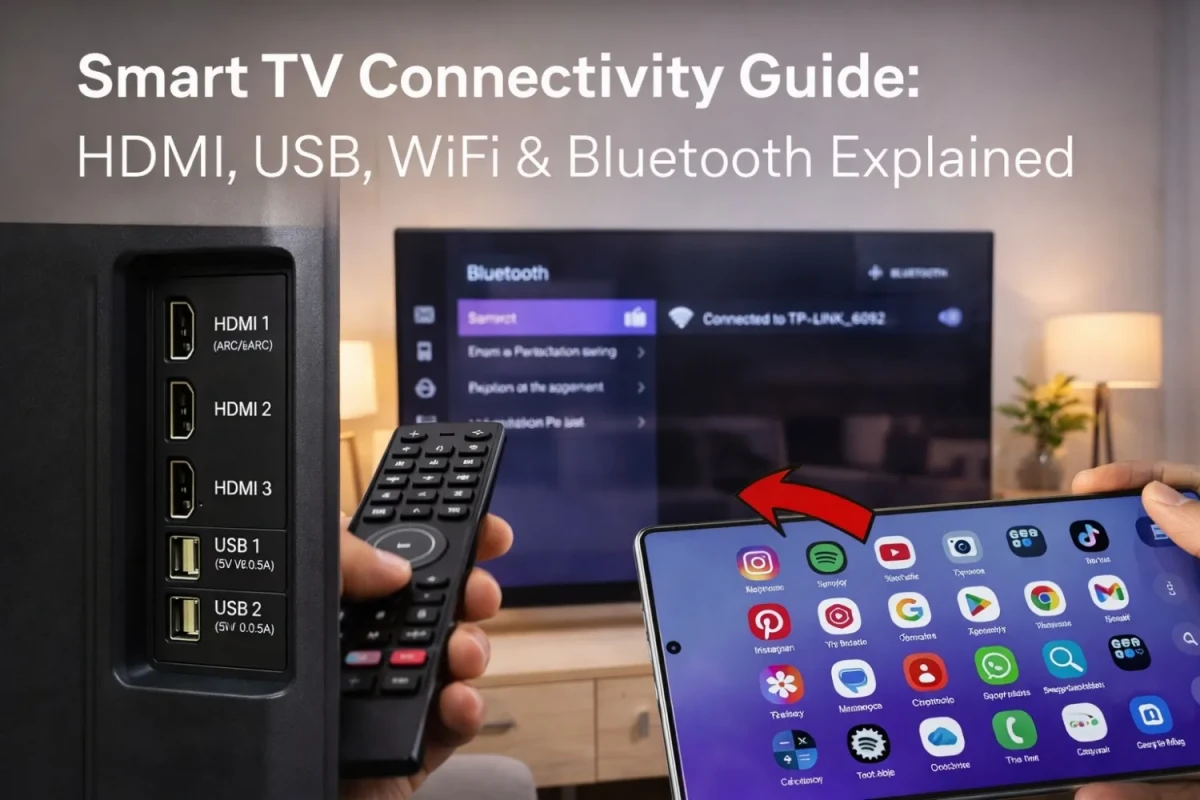
HDMI (High-Definition Multimedia Interface) is one of the most important ports on a smart TV. It is used to connect external devices such as set-top boxes, gaming consoles, laptops, soundbars, and streaming devices to the TV using an HDMI cable. In simple terms, an HDMI port carries both video and audio through a single cable, which makes the connection easy and clutter-free.
To use a smart TV HDMI port, you just need to plug one end of the HDMI cable into your external device and the other end into the TV’s HDMI port. Then, from the TV remote, select the correct HDMI input source to display that device on the screen. Different HDMI ports on a TV can be used for different devices, so having multiple HDMI ports is useful if you want to connect more than one device at the same time.
Most modern TVs come with 2 to 4 HDMI ports, and that number matters more than people expect. If you have multiple devices, running out of HDMI ports can be frustrating.
What to look for:
At least 2 HDMI ports (minimum)
HDMI ARC or eARC for better audio with sound systems
Newer versions (like HDMI 2.0/2.1) for smoother video
For example, many TVs available at Ryans like mid-range Google TVs or Samsung smart TVs offer multiple HDMI ports, making them suitable for both home entertainment and gaming setups.
USB Ports on a Smart TV
USB ports on a smart TV are often overlooked, but they can be very useful in everyday use. They are mainly used to connect devices like pen drives, external hard drives, keyboards, mice, or some streaming accessories to the TV. In many cases, you do not always need a USB cable—for example, a pen drive or USB receiver can be plugged directly into the port.
USB ports are commonly used for playing movies, songs, photos, or other media files directly on the TV. Some TVs also use USB ports to power small devices such as streaming sticks or to support software updates. So, while HDMI is for audio and video connection from external devices, USB is more useful for media playback, accessories, and power support.
You can use USB to:
Play movies, songs, or photos from a pendrive
Connect external hard drives
Power small devices like streaming sticks
Most TVs come with 1 or 2 USB ports, which is usually enough for regular use.
Real-life use:
In Bangladesh, many people still use USB drives to watch downloaded content. So having a reliable USB port is still important, especially for family or offline viewing.
WiFi Options
WiFi is what makes a smart TV truly smart. It allows the TV to connect to the internet so you can use apps like YouTube, Netflix, and other streaming services without needing extra devices. Without WiFi or an internet connection, a smart TV can still work for regular channel viewing or HDMI-connected devices, but many of its smart features will remain unused.
On most smart TVs, the WiFi option can be found easily in the Network or Internet Settings menu. From there, you can select your home WiFi network, enter the password, and connect the TV to the internet. The exact menu name may vary slightly by brand or model, but the setup process is usually simple and similar across most smart TVs.
WiFi allows you to:
Stream YouTube, Netflix, Bongo, Toffee
Download apps
Use built-in smart features
What actually matters:
Stable connection (especially in larger homes)
Router distance from TV
TV’s ability to handle buffering smoothly
Most modern TVs support 2.4GHz WiFi, while some higher-end models also support dual-band (5GHz) for faster and more stable streaming.
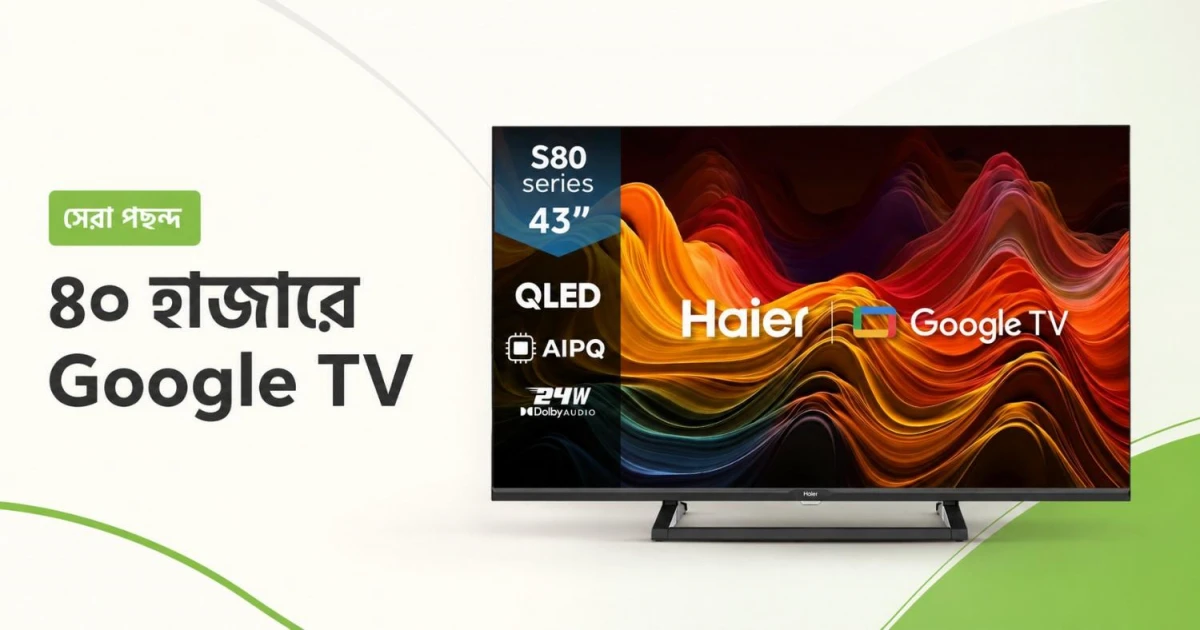
If streaming is your main use, TVs like Google TV models available at Ryans are usually a safer choice because they handle apps and connectivity more smoothly.
Bluetooth Connection
Bluetooth lets a smart TV connect wirelessly to compatible devices without using extra cables. It is commonly used to pair wireless headphones, Bluetooth speakers, soundbars, keyboards, or even some game controllers with the TV. This makes the setup cleaner and more convenient, especially in rooms where you want fewer visible wires.
For many users, Bluetooth is most helpful when watching TV privately through wireless headphones or connecting external audio devices for better sound. On most smart TVs, Bluetooth settings can usually be found in the Settings menu under Bluetooth, Remotes & Accessories, or Connected Devices, depending on the brand and operating system.
Not all budget TVs include Bluetooth, so it’s worth checking before buying.
Screen Casting & Wireless Sharing
Screen casting or wireless sharing lets you display content from your phone, tablet, or laptop directly on your smart TV without using cables. It is useful for watching videos, sharing photos, playing mobile games on a bigger screen, or showing content from apps that may not be available on the TV itself. To use it, both the TV and your device usually need to be connected to the same WiFi network, then you can select the casting option from your phone and choose the TV from the available device list. This feature is important because it makes everyday use more flexible and convenient, especially for users who want quick access to mobile content on a larger screen.
With screen casting, you can:
Mirror your phone screen
Play videos directly from your mobile
Share photos instantly
Google TV and Android TV usually come with Chromecast built-in, which makes casting much smoother compared to basic smart TVs.
This is especially useful for users who watch content from mobile apps or social media.
How Many Ports Do You Actually Need?
Instead of focusing on technical specs, think about your setup:
Basic use (TV + WiFi + USB) → 2 HDMI + 1 USB is enough
Family use (TV + set-top box + pendrive) → 2–3 HDMI + 2 USB
Advanced setup (gaming + sound system + streaming) → 3–4 HDMI + Bluetooth + dual-band WiFi
This simple thinking helps more than memorizing specs.
Common Mistakes to Avoid
A few small mistakes can affect long-term experience:
Ignoring HDMI port count
Buying a smart TV without Bluetooth
Not checking WiFi stability
Overlooking ARC support for sound systems
These are things people usually realize only after buying.
Final Thoughts
A smart TV is not just a screen, it’s the center of your home entertainment. And connectivity decides how smooth that experience will be every day. Before choosing a TV, take a moment to think about how you will actually use it—what you’ll connect, how often you’ll stream, and whether you prefer wired or wireless setups. If those needs are clear, choosing the right TV becomes much easier.







Leave a comment