Best Webcams for Streaming and Content Creation
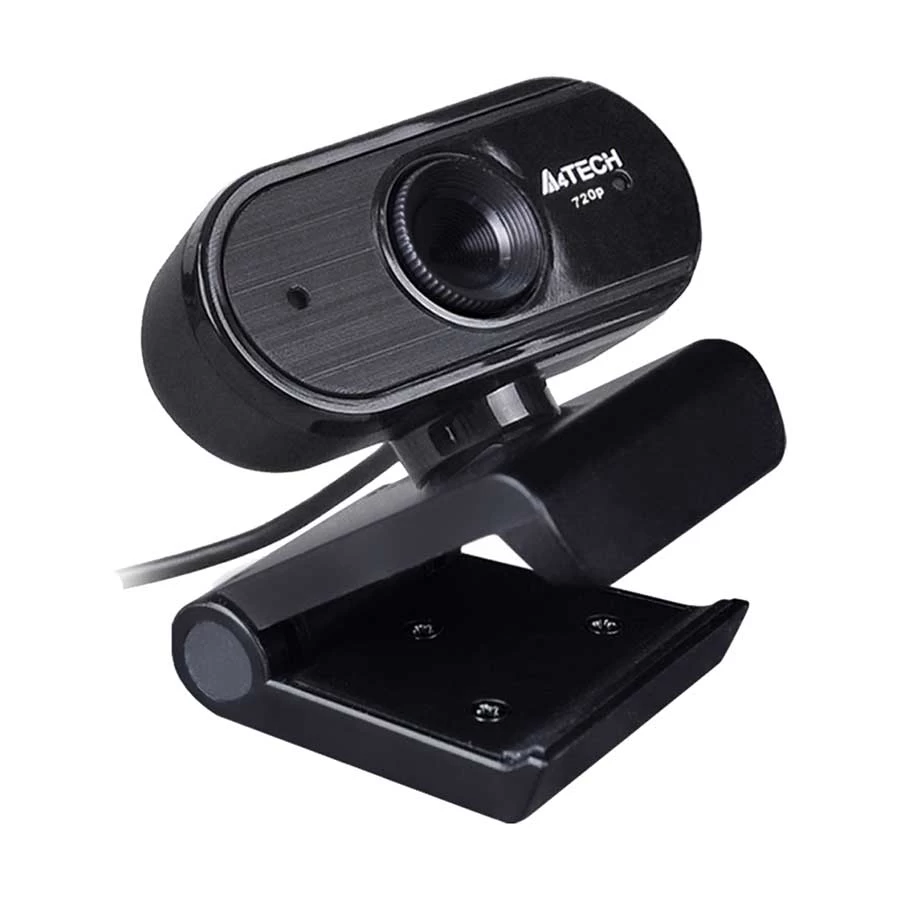
A4TECH PK-825P USB HD Webcam — Best for Budget Streaming
The A4TECH PK-825P is a basic 720p webcam for online classes, meetings, and occasional beginner streams. Its built-in microphone and USB 2.0 connection make it a simple desk setup.
Key features:
- Video resolution: 1280 × 720 (HD)
- Frame rate: 30fps
- Focus: Fixed focus
- Connection: USB 2.0
- Microphone: Built-in, noise cancelling
Why buy it: A sensible starting point if you mainly need clear face-to-face communication without paying for advanced creator features.
What to consider: This is a 720p webcam, not a Full HD model. Keep the subject at a consistent distance and use good front lighting.
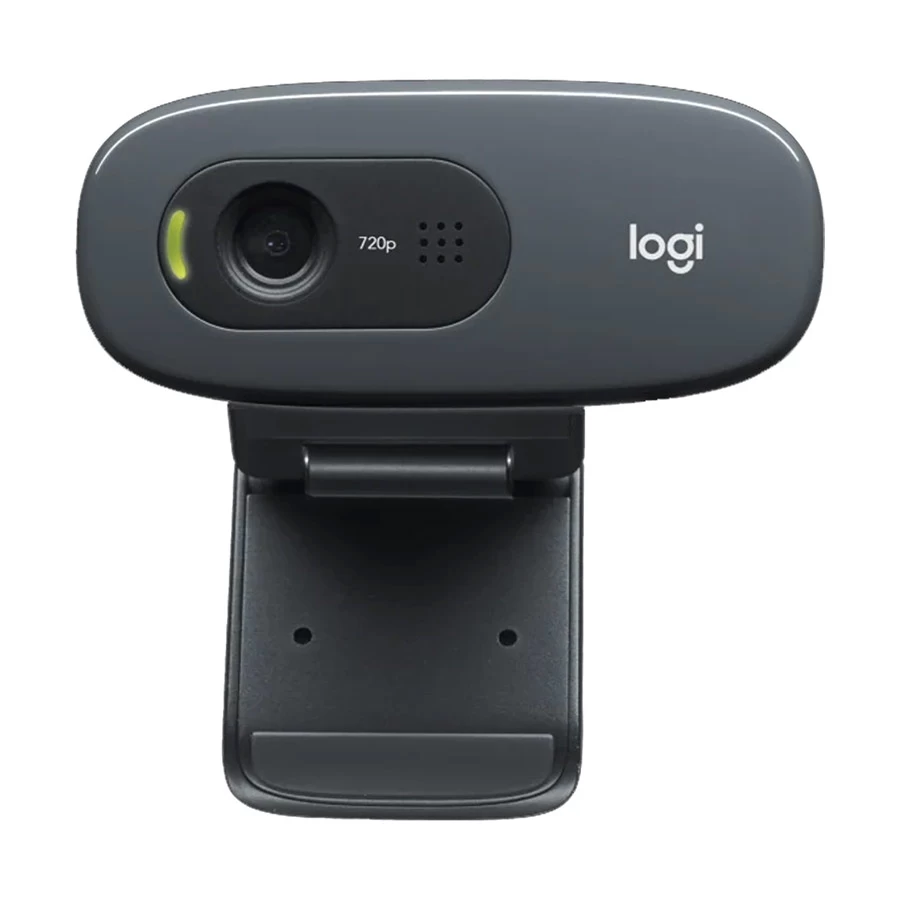
Logitech C270 Webcam — Best for Everyday Streaming and Meetings
The Logitech C270 records at 720p and 30fps. It is designed for straightforward video calls, online teaching, and occasional on-camera conversations rather than detailed content production.
Key features:
- Video resolution: 1280 × 720 (HD)
- Frame rate: 30fps
- Sensor: 0.9MP
- Connection: USB 2.0
- Microphone: Built-in
Why buy it: Its simple USB connection and HD video suit regular meetings and remote study without complicating your setup.
What to consider: Choose a Full HD model if your recording involves small details, cropping, or more demanding video production.
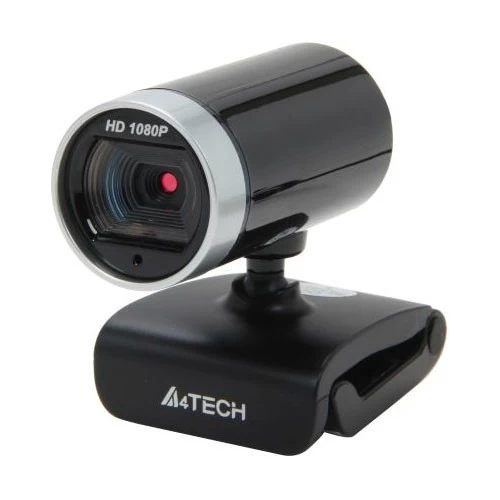
A4TECH PK-910H Webcam — Best for an Affordable Full HD Setup
The A4TECH PK-910H steps up to 1080p Full HD video at 30fps. It suits users who want more detail for presentations, video calls, or a modest starter recording setup.
Key features:
- Video resolution: 1920 × 1080 (Full HD)
- Sensor: 2MP
- Frame rate: 30fps
- Connection: USB 2.0
- Microphone: Built-in
Why buy it: A practical Full HD option when 720p looks too soft but you do not need a premium streaming camera.
What to consider: Its results still depend on lighting and placement. Check the focus and mounting options before ordering.
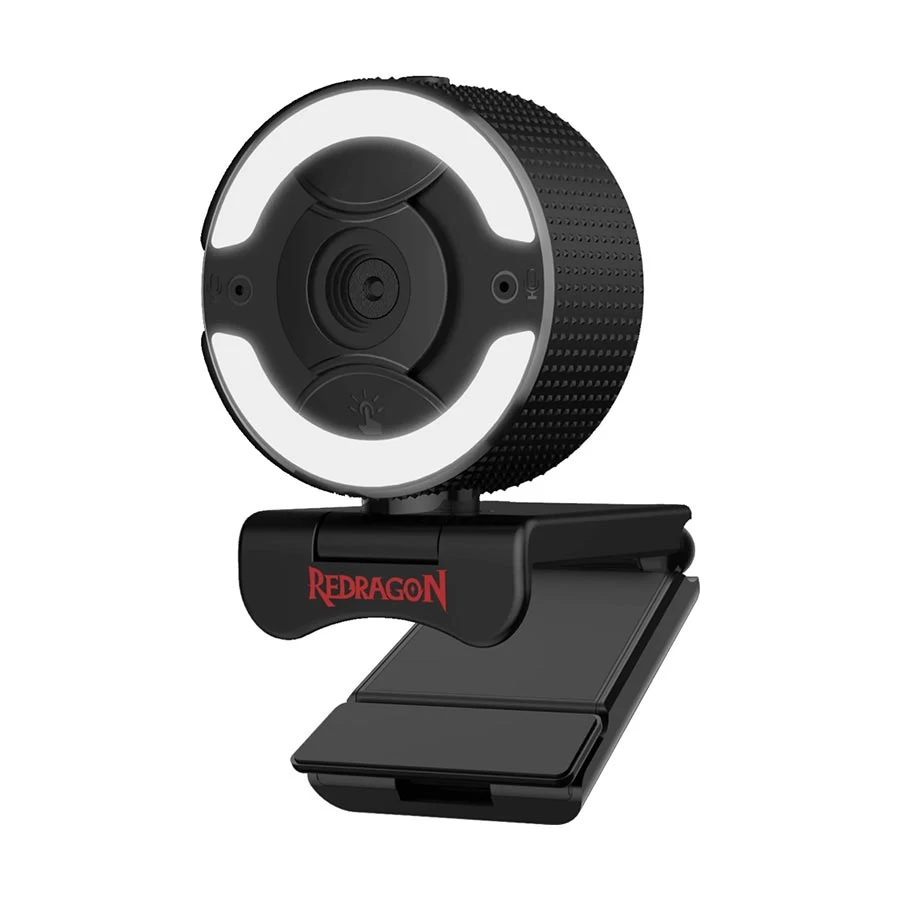
Redragon GW910 ONESHOT FHD USB Webcam — Best for Beginner Content Creators
The Redragon GW910 ONESHOT captures 1080p video at 30fps. It combines a fixed-focus lens with a built-in ring light, dual microphones, and a privacy shutter for desk-based streaming.
Key features:
- Video resolution: 1920 × 1080 (Full HD)
- Frame rate: 30fps
- Focus: Fixed focus
- Lighting: Adjustable ring light
- Privacy: Built-in shutter
- Connection: USB 2.0
Why buy it: The built-in light can help improve your appearance on camera when you do not have a separate desk light.
What to consider: Fixed focus is best when you remain in one position. It is less suitable for moving objects close to the lens.
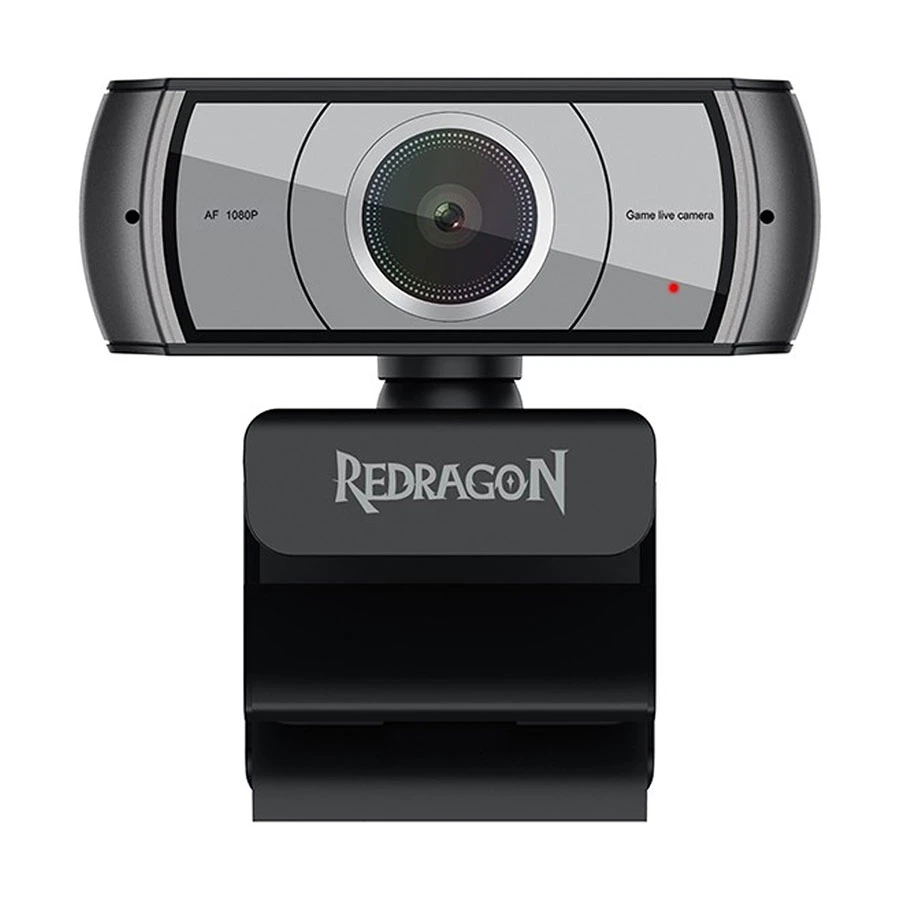
Redragon GW900 APEX HD USB Webcam — Best for Creators Who Need Autofocus
The Redragon GW900 APEX offers 1080p video at 30fps with autofocus and noise-cancelling microphones. It is worth considering if your recording distance changes while you talk or demonstrate something.
Key features:
- Video resolution: 1920 × 1080 (Full HD)
- Frame rate: 30fps
- Focus: Autofocus
- Microphones: Dual, noise cancelling
- Connection: USB
- Cable length: 1.8 metres
Why buy it: Autofocus makes it more flexible for creators who move slightly or present objects during a stream.
What to consider: Ryans specifies 30fps, not 60fps, for this model. If high-frame-rate streaming matters most, compare it with the C922 Pro.
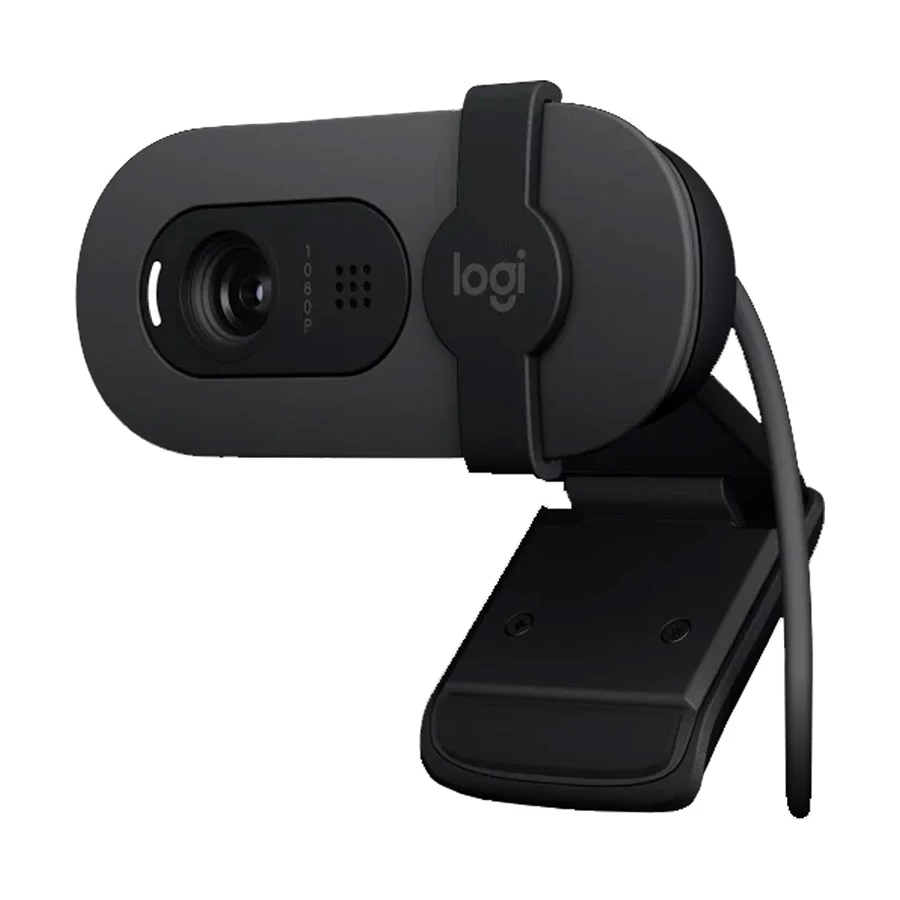
Logitech BRIO 100 FHD Webcam — Best for Affordable Full HD Video
The Logitech BRIO 100 provides 1080p video at 30fps, automatic light balancing, a built-in microphone, and an integrated privacy shutter. It works well for regular calls and desk recordings.
Key features:
- Video resolution: 1920 × 1080 (Full HD)
- Frame rate: 30fps
- Sensor: 2MP
- Focus: Fixed focus
- Connection: USB-A
- Privacy: Integrated shutter
Why buy it: A useful Full HD everyday webcam if you want light correction and a physical privacy cover.
What to consider: It uses fixed focus. If you often present objects near the lens, look at an autofocus model instead.
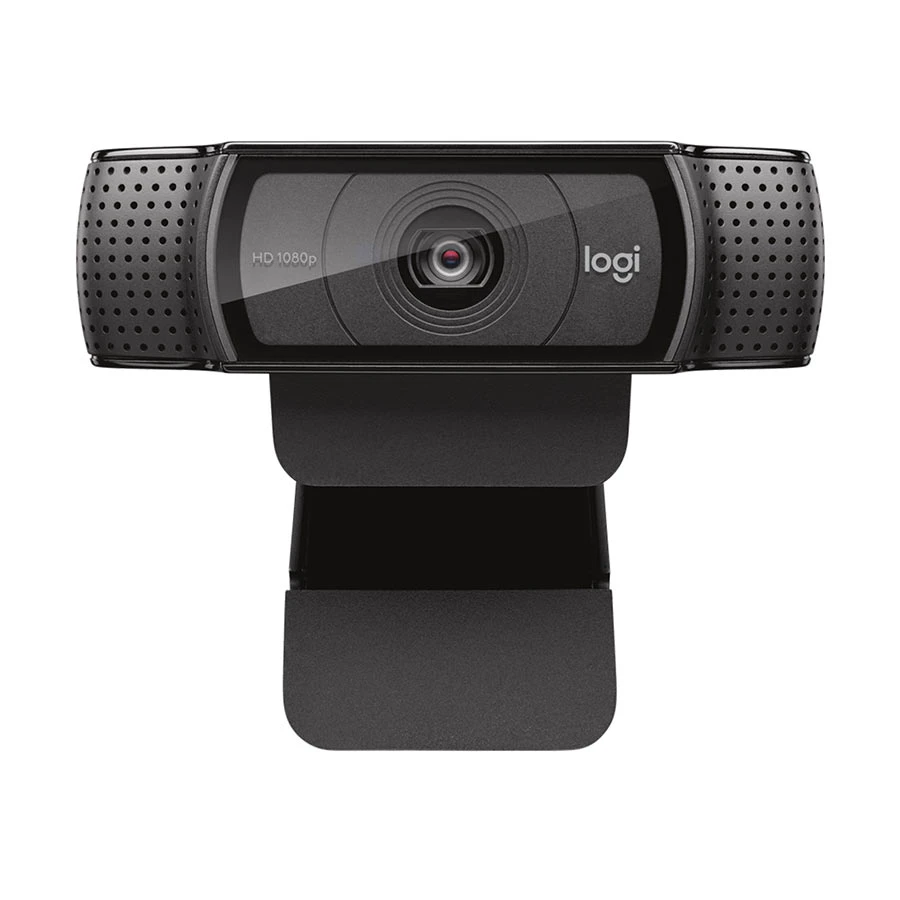
Logitech C920 Pro HD Webcam — Best for Regular Streaming and Video Production
The Logitech C920 Pro is a Full HD 1080p webcam with autofocus, a glass lens, and dual microphones. It fits regular livestreams, online lessons, and video production from a fixed workstation.
Key features:
- Video resolution: 1080p / 720p
- Frame rate: 30fps
- Sensor: 3MP, per Ryans
- Focus: Autofocus
- Connection: USB Type-A
- Microphones: Dual built-in
Why buy it: Autofocus and Full HD capture provide a strong everyday balance for streamers and presenters.
What to consider: It does not include a built-in privacy shutter. Add a cover if that is important for your workspace.
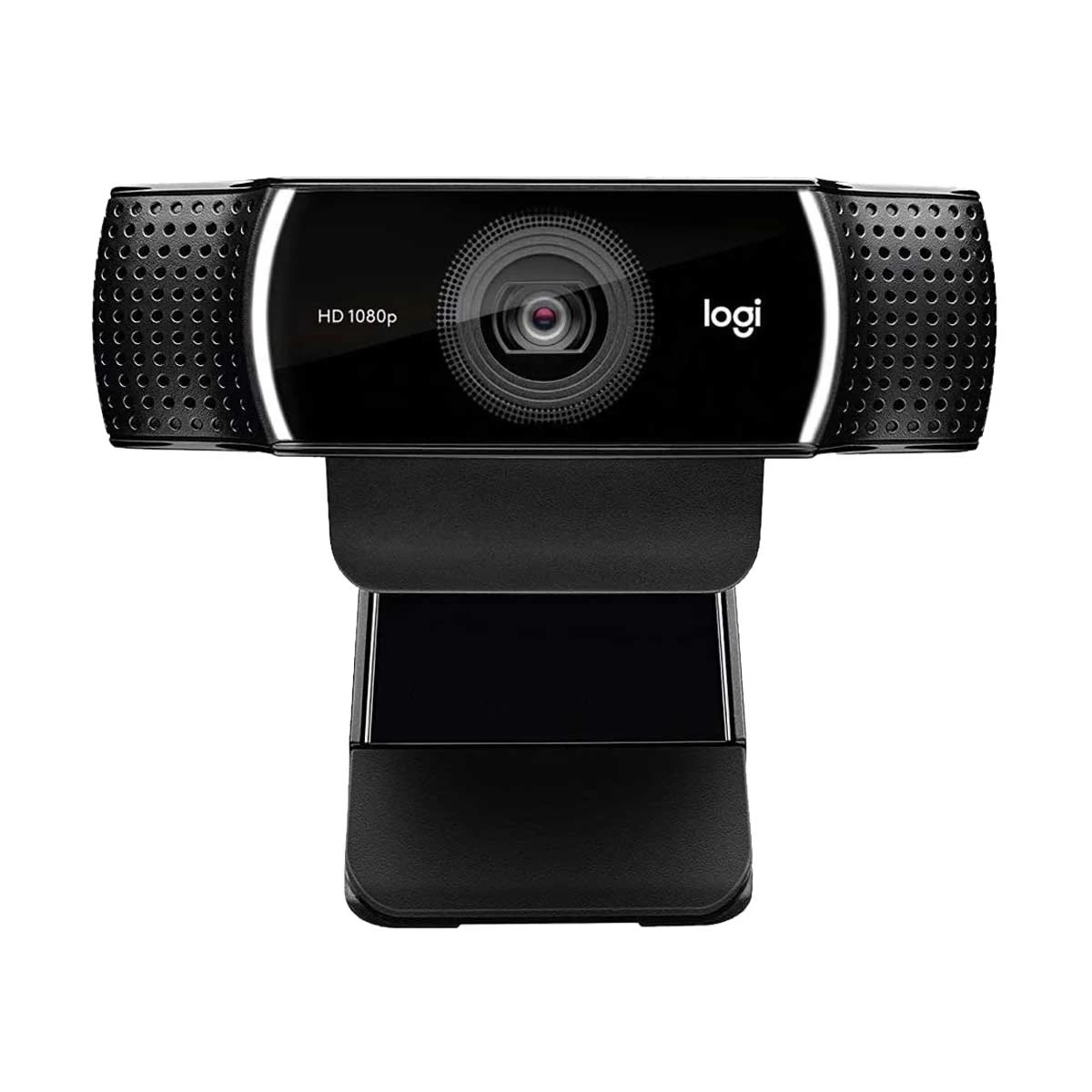
Logitech C922 Pro FHD Webcam — Best for Supported High-Frame-Rate Streaming
The Logitech C922 Pro is designed for streamers who want a choice between 1080p clarity and smoother 720p footage. Logitech specifies 1080p at 30fps or 720p at 60fps, with autofocus.
Key features:
- Full HD mode: 1080p at 30fps
- Smooth HD mode: 720p at 60fps
- Focus: Autofocus
- Connection: USB 2.0
- Microphones: Dual stereo
- Mounting: Tripod-compatible
Why buy it: The 720p/60fps mode is useful when movement looks choppy at 30fps, while 1080p/30fps suits detailed talking-head streams.
What to consider: The 60fps setting is available at 720p, not 1080p. Confirm the selected resolution and frame rate in OBS Studio.
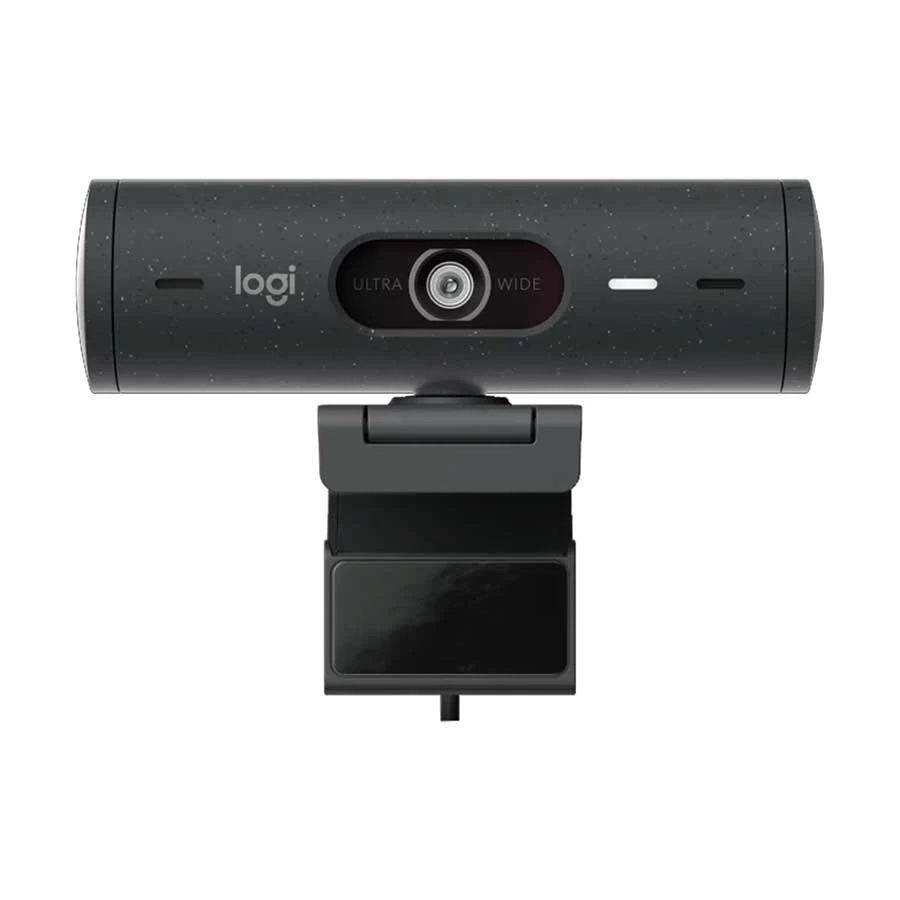
Logitech BRIO 500 FHD USB Type-C Webcam — Best for a More Flexible Work Setup
The Logitech BRIO 500 is a Full HD USB-C webcam with autofocus, auto-framing, and an adjustable field of view. It is a good fit for presentations, frequent calls, and flexible desk setups.
Key features:
- Video resolution: 1920 × 1080 (Full HD)
- Frame rate: 30fps
- Sensor: 4MP
- Focus: Autofocus
- Connection: USB-C
- Field of view: Up to 90°
Why buy it: Auto-framing, USB-C, and flexible positioning make it convenient for users who move or switch between meeting and tutorial tasks.
What to consider: Check that your computer has a compatible USB-C port. For simple calls, a lower-cost Full HD model may already be enough.
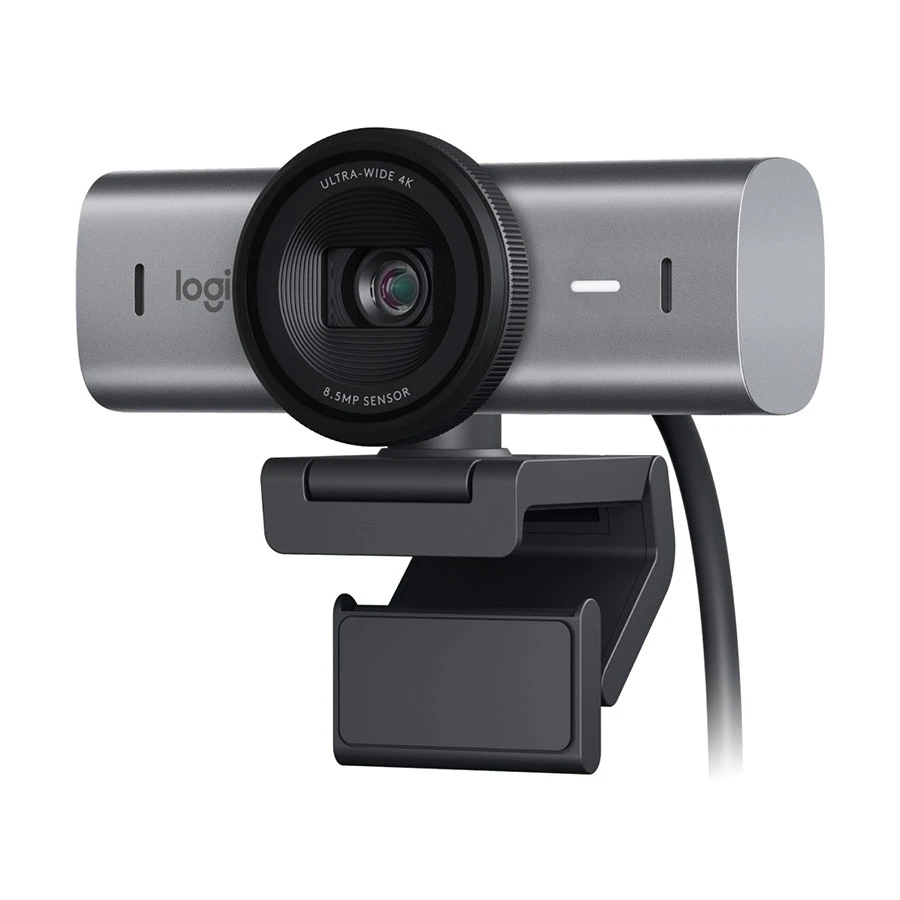
Logitech MX Brio 4K UHD Webcam — Best for Detailed Recording and Editing
The Logitech MX Brio captures 4K UHD at 30fps or 1080p at 60fps. Its 8.5MP Sony STARVIS sensor, autofocus, and USB-C connection suit detailed recording and premium streaming setups.
Key features:
- 4K mode: 3840 × 2160 at 30fps
- Full HD mode: 1920 × 1080 at 60fps
- Sensor: 8.5MP Sony STARVIS
- Focus: Autofocus
- Connection: USB 3.0 Type-C
- Field of view: Up to 90°
Why buy it: 4K capture provides room to crop and reframe recorded videos; the 1080p/60fps mode offers smoother movement when needed.
What to consider: 4K recording uses more storage and processing power, and the camera calls for a suitable USB 3.0 Type-C connection.
You can compare current models in the Ryans webcam collection. Check each product page for availability, warranty, and complete specifications before ordering.
Which Webcam Features Make the Biggest Difference in Streaming Quality?
Video Resolution and Image Detail
Resolution affects how much detail the camera captures. HD can be sufficient for casual calls, while Full HD is a practical choice for many streamers, teachers, and content creators. A 4K webcam is more useful when you need detailed footage or plan to crop and edit recordings.
Remember that resolution alone does not determine image quality. Lens quality, sensor performance, lighting, and software settings also affect the result.
Frame Rate and Smooth Motion
Frame rate measures how many frames the camera captures each second. At 30fps, normal talking and presentations generally look smooth. A supported 60fps mode can make fast movement look smoother, which may help certain gaming streams or demonstrations.
Check which frame rates are supported at each resolution. If you choose 60fps, make sure your computer, recording software, and internet connection can handle the additional workload.
Autofocus and Focus Accuracy
Autofocus can be helpful when you move during a stream or show products close to the lens. Fixed focus may be sufficient if you sit at a consistent distance from the camera.
For tutorial creators, focus matters because viewers need to see the subject clearly. If you regularly demonstrate small items, check how the webcam handles close-up subjects rather than relying on the autofocus label alone.
Sensor Size and Low-Light Video Quality
The camera sensor affects how the webcam captures light and detail. However, product specifications do not always tell the whole story about low-light performance.
If you record in a dim room, try improving the lighting before spending more on a camera. Place a light in front of you and avoid having a bright window directly behind your head. These simple changes can make your video clearer and more balanced.
Field of View and Camera Framing
Field of view describes how much of the scene appears in the image. A narrower view can keep attention on one person, while a wider view may help show a desk, workspace, or more than one participant.
Choose the framing that matches your content. A wide image is not automatically better if it shows too much empty space or makes your face appear small.
1080p vs 4K Webcam: Which Should Content Creators Choose?
| Your use case | Better starting point | Why |
|---|---|---|
| Online classes and regular meetings | HD or Full HD | You may not need extra detail for everyday calls |
| Beginner live streaming | Full HD | A practical balance of clarity and cost |
| Product tutorials and demonstrations | Full HD or 4K | The right choice depends on how much detail viewers need to see |
| Recorded videos with cropping and editing | 4K | Higher-resolution footage gives more room to reframe |
| Fast-moving content | Check supported frame rates | Smooth motion depends on the selected resolution and frame rate |
How to Choose the Right Webcam for Your Streaming Setup
Before choosing a model, consider your usual recording conditions and the equipment you already own.
1. Match the Camera to Your Content
For regular calls and online teaching, a budget HD or Full HD webcam may be enough. For frequent streaming, look for consistent video quality and suitable focus options. For professional tutorials or detailed recording, consider whether Full HD or 4K better matches your final output.
2. Check Your Computer and USB Connection
Confirm whether your computer has the required USB-A or USB-C connection. If you need an adapter, check that it supports the camera’s data requirements. Also confirm operating-system support and whether your preferred application can use the webcam.
3. Plan Your Lighting and Audio
A professional streaming webcam is only one part of the setup. A light placed in front of you can improve facial detail, while a separate microphone may help with voice clarity. Consider these upgrades alongside the camera instead of spending the entire budget on resolution.
4. Compare the Total Cost
A more expensive webcam may include features you do not need. If you mainly join online meetings, paying extra for 4K capture may offer little practical benefit. If you publish videos regularly, the time saved by better framing or the extra editing flexibility may justify the additional cost.
5. Verify the Exact Product Details
Before ordering, check the current product listing for resolution, frame rates, focus type, connectivity, mounting options, package contents, warranty, and price. These details can vary between models and product versions.
How to Set Up a Webcam for Professional Live Streaming and Recording
Position the Webcam for Better Framing
Place the webcam near eye level, facing you directly. Keep your face clearly visible and leave a little space above your head. Avoid placing the camera too low or pointing it upward.
Improve Lighting Without Expensive Equipment
Sit facing a window or place a desk lamp in front of you. Avoid strong light behind your head, as it can make your face look dark. Soft, even lighting usually gives a clearer image.
Configure Resolution and Frame Rate in OBS Studio
Open OBS Studio and select your webcam under Video Capture Device. Choose a supported resolution, such as 1080p, and a frame rate of 30fps or 60fps if available. Test the settings before streaming.
Adjust Focus, Exposure, and White Balance
Keep your face in focus and adjust exposure so the image is not too dark or bright. Set white balance to make skin tones look natural. If automatic settings work well, you may not need to change them.
Check Your Audio and Internet Upload Speed
Test your microphone and listen for background noise. Run an internet speed test to check upload speed. If your stream stutters, lower the video bitrate or resolution.
Common Webcam Problems That Can Reduce Content Quality
A new webcam will not automatically fix every recording problem. Check these common issues before replacing your camera:
- Dark or grainy video: Improve front lighting and avoid strong backlighting.
- Blurry image: Check the focus setting, lens cleanliness, and distance from the camera.
- Choppy live stream: Review the frame rate, software settings, computer load, and internet connection.
- Poor voice quality: Reduce background noise, move closer to the microphone, or consider a separate microphone.
- Uncomfortable framing: Move the webcam closer to eye level and adjust the field of view.
- Unexpectedly low resolution: Check the camera settings and the resolution supported by your streaming or meeting application.
Why Buy a Professional Webcam from Ryans?
Ryans helps you compare webcam options and check important buying details in one place. Before ordering, use these resources to confirm availability, warranty terms, payment options and delivery arrangements.
- Product Availability: See the stock status online or contact your nearest store through the Ryans branch directory.
- Warranty: Coverage varies by model and invoice. Review the warranty policy and keep the original packaging and accessories if required.
- Payment and EMI: Planning to pay in installments? Check the EMI conditions for eligible banks, orders and repayment terms.
- Delivery: Available shipping methods and fees depend on your location and order. See the delivery charges before checkout.
- Online Ordering: Double-check your chosen model, final price and delivery method. The online order procedure explains the steps.
Frequently Asked Questions
Does a professional streaming webcam need a capture card?
No. Most USB webcams connect directly to your computer. A capture card is usually needed for cameras that use HDMI or other supported video connections.
Can I connect two webcams to OBS Studio at the same time?
Yes, if your computer has enough USB bandwidth and processing power. Add both cameras to OBS Studio and test them before streaming.
Can a webcam replace a DSLR or mirrorless camera for YouTube?
Yes, for basic videos and live streams. However, DSLR and mirrorless cameras offer more lens options and greater control over image quality.
Why does my webcam look blurry during a livestream?
Check your camera resolution, focus, lighting, and OBS Studio settings. Slow internet or video compression may also reduce streaming quality.











Leave a comment