Google has recently made a big change for mobile gaming fans. Now, many Android games can be played on PC without depending on BlueStacks or other third-party emulators. But there is one important thing to understand: this does not mean you can simply install the normal Google Play Store on Windows and start playing games.
Google’s official solution for PC is called Google Play Games on PC. This is a separate app for Windows, and it lets users install and play supported Android games on their computers.
This news is even more important for gamers in Bangladesh because Bangladesh is listed as one of the supported regions for Google Play Games on PC. That means Bangladeshi users can also use this service if their hardware and settings meet Google’s requirements.
What update has actually arrived?
Many people online are talking about this as if Google has suddenly brought the full Play Store to Windows. But the real story is a little different. Over the past year, Google has slowly expanded the Google Play Games on PC platform.
In March 2025, Google announced that many mobile games would become available on PC by default, unless developers chose to opt out. At the same time, Google also introduced better compatibility labels, support for more AMD devices, and more PC-focused improvements.
Later, in September 2025, Google Play Games on PC officially moved from beta to general availability. After that, in January 2026, Google added the new “Aim and Shoot” control feature. Then, in March 2026, Google introduced “buy once, play anywhere” support and Play Pass support for selected games on PC.
So, this is not just one small update. It is part of Google’s bigger plan to expand Android gaming from mobile phones to PC.
Can you really play without an emulator?
From a normal user’s point of view, the answer is yes. Many Android games can now be played on PC without needing a third-party emulator. That is because Google now offers its own official app for Windows.
However, from a technical point of view, the system still depends on virtualization. Google’s installation guide also says that in many cases, Windows Hypervisor Platform and CPU virtualization need to be turned on.
So the most correct way to say it is this: Many Android games can now be played on PC through Google’s own official platform, so users no longer need a separate third-party emulator.
What do you need to run Google Play Games on PC?
According to Google’s official requirements, your PC should have at least the following:
- Windows 10 (v2004) or a newer version
- SSD with at least 10GB of free space
- 8GB RAM
- 4 physical CPU cores
- Intel UHD Graphics 630 or a similar GPU
- A Windows admin account
- Hardware virtualization turned on
Google also says that meeting the minimum requirements does not always mean every game will run perfectly. Some games may still show performance warnings. So for users in Bangladesh who are using older desktops or low-end laptops, it is very important to check compatibility first.
Play Store or Google Play Games on PC: which one do you actually need?
This is where most of the confusion is happening.
Some people are saying, “Now you can just install the Play Store on PC and play games.” But that is not fully correct.
The official client that Google has made for Windows is Google Play Games on PC. If you want to play Android games on your PC, you do not need to install the normal Android version of Google Play Store. Instead, you need to install the separate Windows app called Google Play Games on PC.
Step-by-step installation process
Step 1: Visit the official website
First, go to the official Google Play Games on PC download page:https://play.google.com/googleplaygames
From there, download the installer. It is always safer to download it directly from Google’s official website.
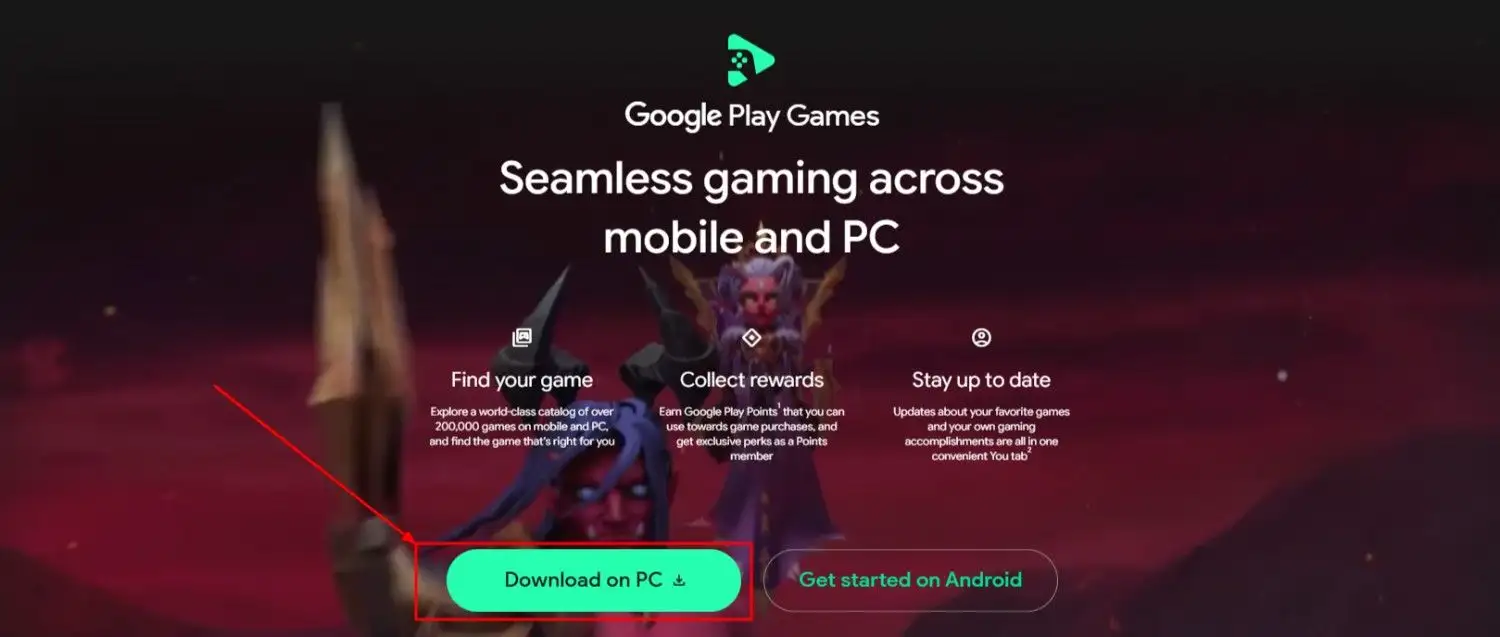
Step 2: Run the installer
Open the installer file after downloading it. If your PC does not meet the minimum requirements, Google may stop the installation or show a warning message.
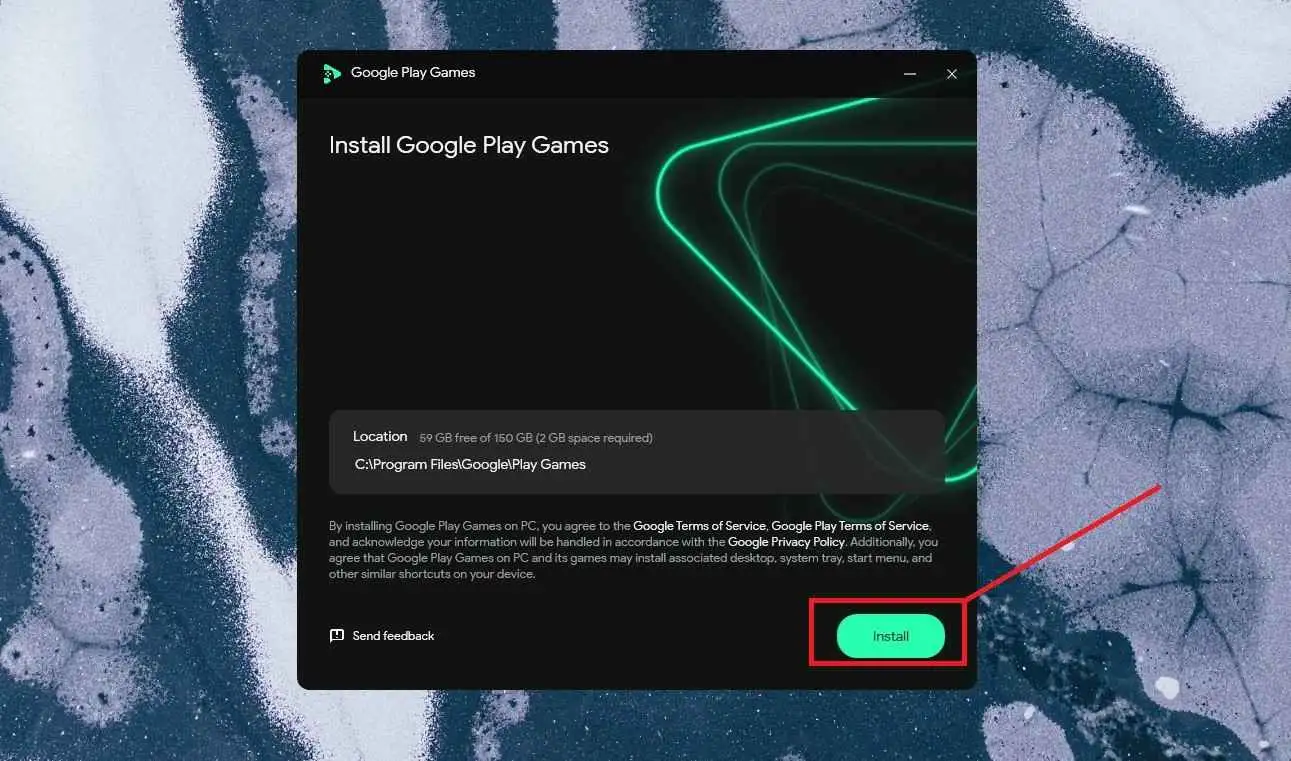
Step 3: Turn on Windows Hypervisor Platform
In some cases, during installation, you may see a prompt asking you to enable Windows Hypervisor Platform. Google says you should enable it and restart your PC if needed. Some games may also require CPU virtualization to be turned on from the BIOS.
Link: https://support.google.com/googleplay/answer/11913190?visit_id=639100079470943062-502349304&rd=1
Step 4: Sign in with your Google account
After installation, sign in using your Google account. If you use the same Google account on both your phone and PC, it may be easier to sync progress in supported games.
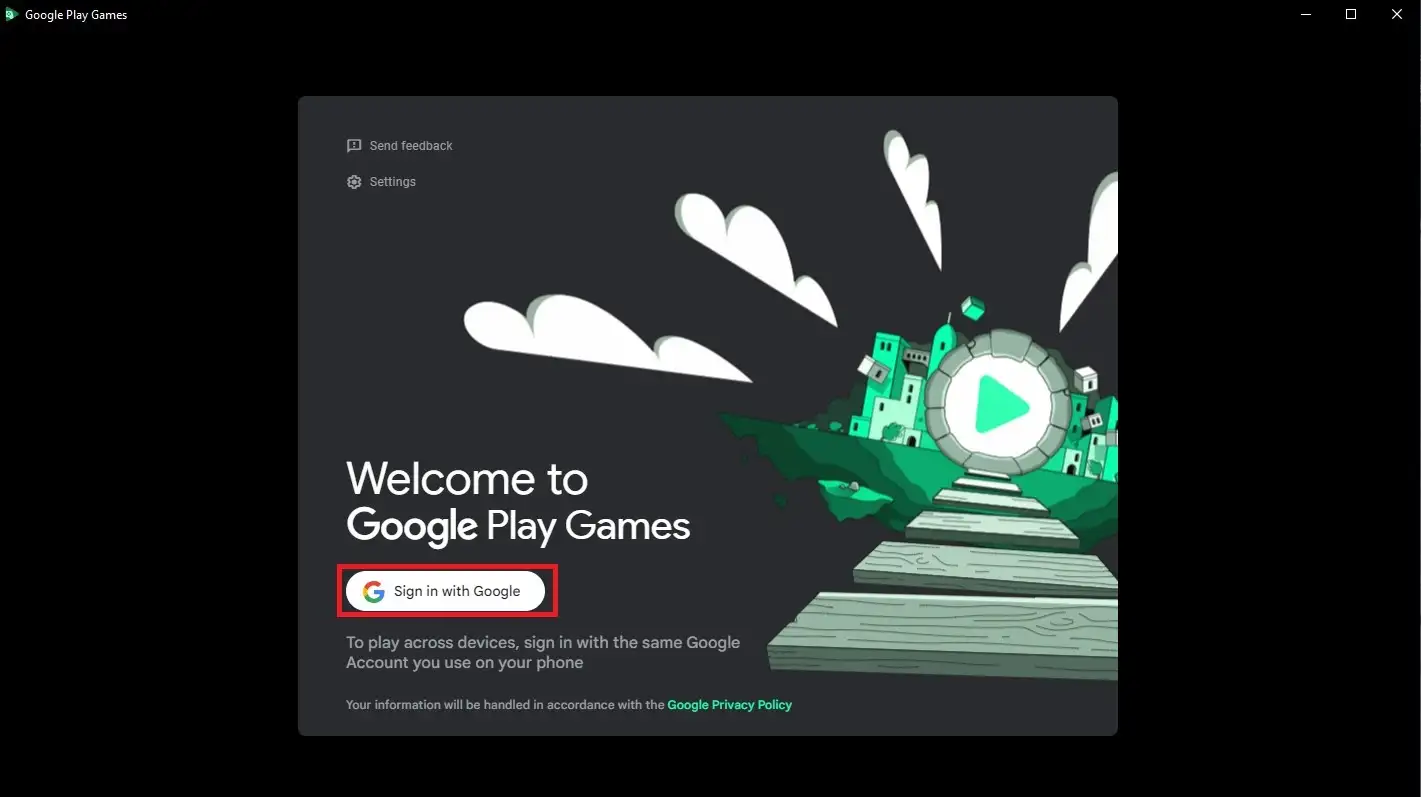
Step 5: Search for a game
Inside the app, search for the game you want. Not all games are listed in the same way because Google now uses compatibility badges.
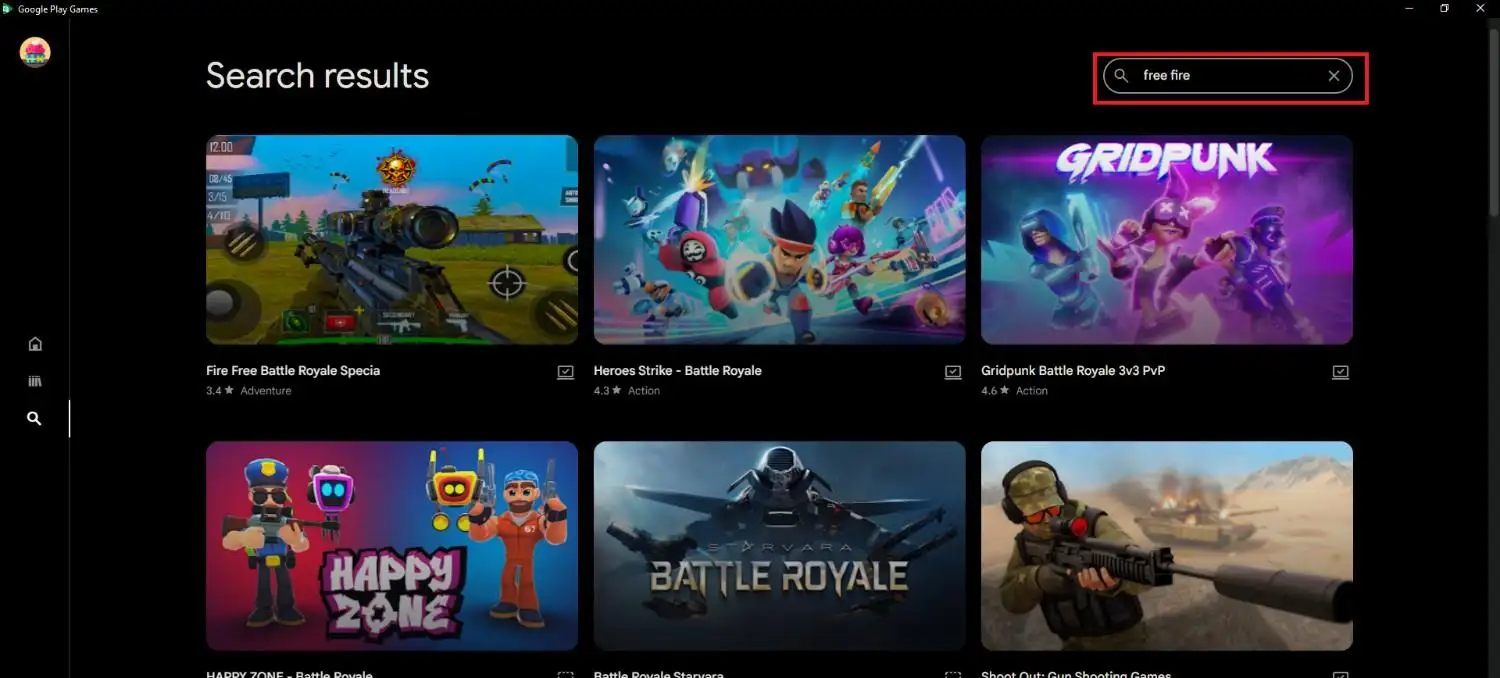
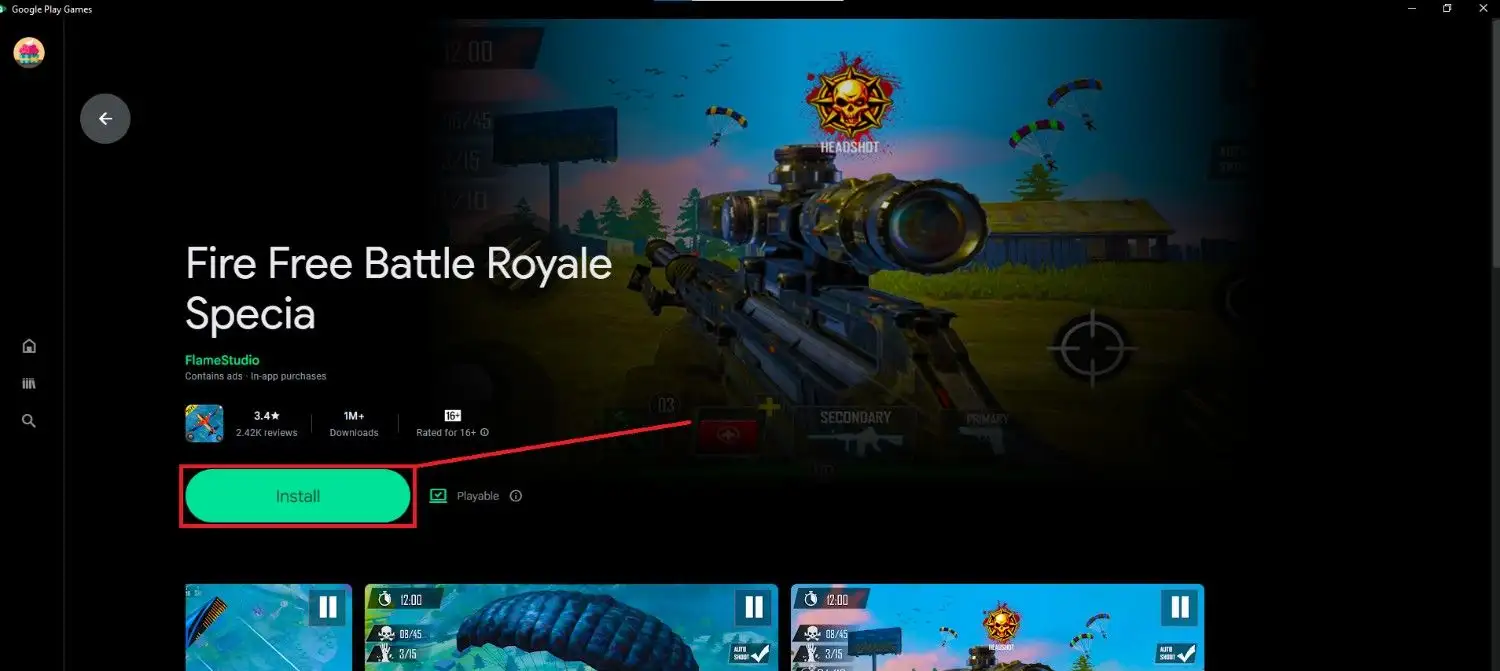
Step 6: Click Install
If the game is supported, you will see the Install button. After installation, you can click Launch and start playing.
Will all games run?
No, not all games will run the same way.
Google uses four types of compatibility badges to show how well a game works on PC.
1) Optimized
These games have been specially optimized by developers for Windows. According to Google, these offer the best PC experience.
2) Playable
These games have been tested by Google and are considered playable on Windows. To get this label, a game must be stable, run at 30fps or more, and support mouse or keyboard input.
3) UntestedThese games have not yet been tested by Google for PC. They may work, or they may not. In many cases, you may have to search for them directly instead of finding them while browsing.
4) Not available
This means the game is either not available on Google Play Games on PC or not supported on your specific PC.
This part is very important for Bangladeshi readers because many people may think that all Android games now work on PC. But in reality, Google clearly says that support levels are different.
What new features does Google Play Games on PC offer?
Google is not only making Android games playable on PC, but also improving the PC gaming experience over time.
Custom Controls Editor
Google has added a Controls Editor that allows users to change key mapping in some supported games. Users can save, share, import, and export control schemes. Google also says that F12 can be used to hide or show control labels.
Aim and Shoot control
In the January 2026 update, Google added the Aim and Shoot control feature. This can be especially useful in FPS-style games, where keyboard and mouse controls can give a better experience. According to Google, you can press Shift + Tab in a game and go to remap controls to access this feature.
Multiple accounts
Users can add multiple gamer profiles on the same PC. Google says up to five accounts can be added.
Multi-instancing
Google also offers the option to run the same game in separate windows using different accounts at the same time. According to Google, this can provide smoother gameplay with lower resource use compared to some third-party emulators.
Multiple games in separate windows
Users can also open more than one game in separate windows. According to Google’s help page, up to four windows may be supported, although older devices may support fewer.
Buy once, play anywhere
In the March 2026 update, Google announced that some selected games can be purchased once and then played across phone, tablet, and PC.
Play Pass support on PC
Play Pass subscribers can now access selected paid, ad-free, and fully unlocked mobile games on PC as well, if those titles are supported.
What should you do if the app does not install or games do not run?
According to Google’s troubleshooting guide, there are several common fixes.
First, close Google Play Games on PC and open it again. You can do this by right-clicking the app icon in the taskbar notification area and selecting Exit, then reopening the app.
Second, check if there is an update available. You can also do this from the system tray by selecting Check for updates.
Third, make sure your graphics driver is updated. Google says that some games may not work properly on a PC if the graphics driver is too old.
Fourth, check whether Windows Hypervisor Platform and BIOS virtualization are turned on properly.
Finally, if the problem continues, uninstall the app and download the latest installer again from Google’s official website.
Why this matters for users in Bangladesh
Mobile gaming is already very popular in Bangladesh. Many users regularly play games like Free Fire, PUBG Mobile, Mobile Legends, Clash of Clans, eFootball, and Call of Duty Mobile on their phones. But not everyone owns a powerful gaming phone. That is why Google Play Games on PC can be important.
If Android games can be played officially on PC, there are some real benefits. Playing on a bigger screen is often more comfortable. Keyboard and mouse support can make controls easier in some games. In many cases, using the same Google account also helps with syncing game progress between mobile and PC. Also, because this is an official Google platform instead of a third-party emulator, many users may find it more trustworthy and secure.
At the same time, there are some practical limits. Users should first check whether their PC is compatible. If the computer does not have an SSD or enough RAM, performance may not be very good. It is also important to remember that not all Android games are supported equally. So people should not assume that every mobile game will run perfectly on PC just because Google Play Games on PC is now available.
Another point is that this official platform may not always offer the same level of flexibility as unofficial emulators. Still, because it is official, many users may get a more stable and polished experience. This could be especially useful for regular mobile gamers who do not want to buy a separate gaming phone but still want the benefit of a bigger screen and PC controls.
Conclusion
The recent changes to Google Play Games on PC are a major step for Android gaming. The biggest point is that users no longer need to depend on third-party emulators to play many mobile games on PC. But the idea that “you only need to install the Play Store” is not correct. The real solution is Google Play Games on PC.
Google is slowly expanding the platform by adding compatibility badges, better controls, multi-window support, multi-account support, Play Pass access, and even buy-once-play-anywhere features.
For users in Bangladesh, the good news is that the service is officially supported. But along with the excitement, users should also think about the practical side: whether their PC is compatible, whether their favorite game is supported, and whether performance will be good enough. Checking these things first will help users make the right decision.
FAQ
Do I only need to install the Play Store to play Android games on PC?No. Google’s official Windows solution is Google Play Games on PC.
Are Game Trials already available on PC?Game Trials have been announced, but they may not yet be available equally for all users or all
PC-supported games.
Does this mean no emulator is needed at all?No third-party emulator is needed, but virtualization-based setup may still be required.
Is this available in Bangladesh?Yes. Bangladesh is included in Google’s supported country list.
Will all Android games work on it?No. Games may be labeled as Optimized, Playable, Untested, or Not available.
What new features have been added?Some of the major new features include Aim and Shoot control, multi-instancing, multiple windows, multiple accounts, Play Pass support for selected games, and buy-once-play-anywhere support.





Leave a comment