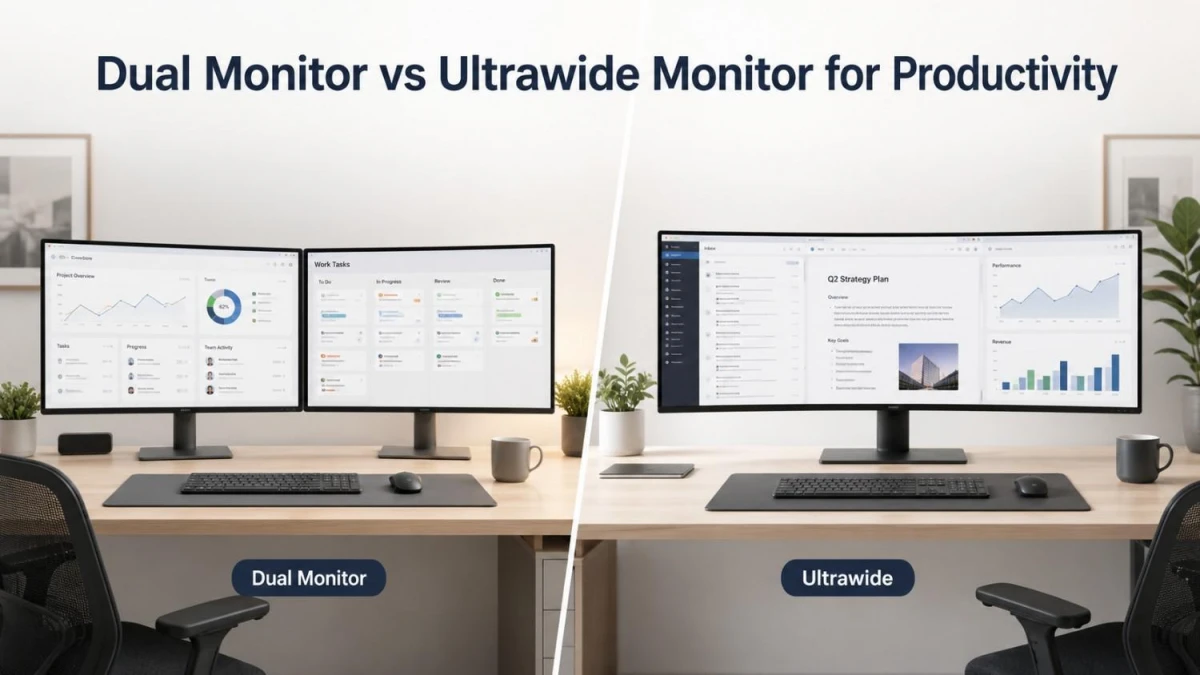
If you work with multiple windows every day, your monitor setup can directly affect comfort and productivity. A dual monitor setup gives you two separate screens, while an ultrawide monitor gives you one wider workspace. The better choice depends on your work type, desk space, budget, device support, and how you prefer to organize your tasks.
What Is a Dual Monitor Setup?
A dual monitor setup means using two monitors with one desktop PC, laptop, or workstation. It gives you two separate screens so you can keep different apps open at the same time.
For example, you can keep your main work on one monitor and supporting tools on the second monitor. This setup is common for office users, developers, freelancers, customer support teams, traders, and remote workers.
- Write on one screen and research on another.
- Code on one display and preview output on the second.
- Keep Zoom, Teams, or Google Meet open while taking notes.
- Monitor email, chat, calendar, or dashboards separately.
- Edit documents while checking reference files.
A dual monitor setup is flexible because you can start with one monitor and add another later when your workflow grows.
What Is an Ultrawide Monitor?
An ultrawide monitor is wider than a regular monitor. Most regular monitors use a 16:9 aspect ratio, while many ultrawide monitors use 21:9. Larger models may use 32:9, which is often called super ultrawide.
Instead of using two separate screens, an ultrawide monitor gives you one large workspace on a single panel. This helps reduce clutter and removes the bezel gap between two monitors.
- Cleaner desk setup
- Fewer cables
- No middle bezel gap
- More horizontal space
- Better timeline view for editing
- Smoother side-by-side window arrangement
For many productivity users, a 34 inch 3440 x 1440 ultrawide monitor is a practical starting point because it offers wide screen space without becoming too extreme.
Dual Monitor vs Ultrawide Monitor: Quick Comparison
| Feature | Dual Monitor Setup | Ultrawide Monitor |
|---|---|---|
| Screen Layout | Two separate displays | One wide display |
| Multitasking | Very strong | Very smooth |
| Window Separation | Easier to divide apps | Needs window snapping |
| Screen Gap | Has bezel gap between monitors | No middle gap |
| Desk Look | Can feel busier | Cleaner and more premium |
| Setup Cost | Can be budget-friendly | Usually costs more upfront |
| Cable Management | More cables | Fewer cables |
| Best For | Office, coding, admin work, monitoring | Editing, research, writing, trading, creative work |
| Device Support | Needs multiple display outputs | Needs proper resolution support |
Why People Choose Dual Monitors for Productivity
A dual monitor setup is useful because it gives you separate work zones. Many users prefer this because each screen can have a clear purpose.
You can keep your main task on one display and your supporting apps on the other. This reduces constant tab switching and makes task separation easier.
Office Work
Use one monitor for documents or spreadsheets and the second for email, browser, or reports.
Programming
Keep code on one display and documentation, preview, terminal, or logs on the second.
Online Meetings
Join a meeting on one screen while taking notes or checking files on the other.
Dashboards
Monitor analytics, business data, communication tools, or trading charts separately.
For users in Bangladesh who want a practical productivity upgrade, dual monitors can be cost-effective because you can build the setup gradually.
Why People Choose Ultrawide Monitors for Productivity
An ultrawide monitor gives you one continuous workspace. There is no bezel gap in the middle, so the screen feels cleaner and more natural.
This is useful when your work needs wide horizontal space, especially for timelines, spreadsheets, dashboards, writing, research, coding, and creative tools.
Video Editing
The wider screen helps you see more of the editing timeline without constant scrolling.
Writing and Research
Keep your draft on one side and sources, notes, or browser tabs on the other.
Coding
Use one large screen for code editor, terminal, file tree, and preview windows.
Trading and Analytics
View multiple charts, dashboards, and data windows in one seamless layout.
Which Setup Is Better for Office Work?
For general office work, both setups can work well. The better option depends on how you organize your tasks.
A dual monitor setup is better if you like separating work clearly. An ultrawide monitor is better if you want a cleaner desk and prefer arranging multiple windows on one screen.
| Office Task | Better Choice | Why |
|---|---|---|
| Email + Document Work | Dual Monitor | Easy to keep communication and work files separate. |
| Reports + Browser + Dashboard | Ultrawide | More horizontal space for multiple windows. |
| Online Meetings + Notes | Dual Monitor | Meeting and notes can stay on separate screens. |
| Clean Single-Screen Workspace | Ultrawide | No center bezel and fewer cables. |
| Budget Office Setup | Dual Monitor | Easier to build gradually with affordable monitors. |
Which Setup Is Better for Coding?
For programming, the right choice depends on workflow. Some developers prefer separate screens, while others prefer one large coding space.
Dual Monitor Is Good For
- Code + documentation
- Code + live preview
- Backend and frontend split workflow
- Debugging on one screen and output on another
Ultrawide Is Good For
- Large code editor workspace
- Multiple panels in one window
- Cleaner desk setup
- Code, terminal, and preview side by side
For developers in Bangladesh using a desktop PC or laptop, two Full HD monitors can be a budget-friendly upgrade. A 34 inch ultrawide monitor is better if you want a cleaner and more premium coding workspace.
Which Setup Is Better for Video Editing and Creative Work?
For video editing, an ultrawide monitor often feels more natural because editing timelines are horizontal. The extra width helps you see more of the timeline without constant scrolling.
Dual monitors are still useful for creative work because you can keep the editing software on one screen and preview, files, browser, or notes on the second screen.
| Creative Work | Dual Monitor | Ultrawide |
|---|---|---|
| Video Timeline Editing | Good | Excellent |
| Photo Editing | Good | Good |
| Design Tools and References | Excellent | Good |
| Streaming Setup | Excellent | Good |
| Audio Editing | Good | Excellent |
For creators, panel quality matters more than only screen layout. Check IPS panel, color coverage, resolution, brightness, and calibration support before buying.
Which Setup Is Better for Trading and Dashboards?
For trading, business monitoring, analytics, and dashboards, both setups are useful.
A dual monitor setup helps when you want to separate live charts, order windows, news, spreadsheets, and communication tools. An ultrawide monitor gives a cleaner dashboard view without bezel gaps.
Choose Dual Monitors If
- You need multiple independent screens.
- You want to expand later.
- You use many separate tools.
- You prefer fixed zones for each task.
Choose Ultrawide If
- You want one clean dashboard.
- You dislike bezels between screens.
- You work with wide charts.
- You prefer a premium desk setup.
For advanced trading setups, some users may combine both: one ultrawide monitor plus one secondary monitor.
Desk Space and Comfort
Desk space is one of the biggest factors. A dual monitor setup needs more width, two stands or a monitor arm, and more cable management. An ultrawide monitor also needs enough space, but it usually looks cleaner because there is only one screen and one stand.
- Check your desk width and viewing distance.
- Make sure the monitor stand fits comfortably.
- Plan cable routing before setting up multiple screens.
- Keep the screen at a comfortable eye level.
- Check height adjustment, tilt, swivel, and VESA mount support.
- Consider Eye Care features and anti-glare coating for long work sessions.
A better screen setup should not only give you more space. It should also feel comfortable after hours of work.
Ports and Device Support
Before buying any monitor setup, check your device ports. For dual monitors, your laptop or desktop needs to support two external displays. Some laptops may need a docking station, USB-C hub, or adapter.
For ultrawide monitors, your device must support the full resolution and refresh rate. A 3440 x 1440 ultrawide display needs better output support than a basic Full HD monitor.
- Does your laptop or PC support the monitor resolution?
- Can your graphics card handle the display properly?
- Do you need HDMI, DisplayPort, USB-C, or Thunderbolt?
- Will you connect a desktop PC, laptop, or both?
- Do you need a docking station?
- Do you need speakers, audio out, or USB hub support?
For laptop users, USB-C monitors can be useful because they may support display output, charging, and data through one cable if the laptop is compatible.
Cost and Value in Bangladesh
In Bangladesh, dual monitor setups can be more budget-friendly because you can buy one monitor first and add another later. Two 22 inch or 24 inch Full HD monitors can create a strong productivity setup without going premium.
Ultrawide monitors usually cost more because they offer a larger panel, wider resolution, and more advanced features. However, they can replace two monitors for many users.
| Budget Type | Practical Choice |
|---|---|
| Low Budget | One 24 inch Full HD monitor first |
| Medium Budget | Two 24 inch monitors |
| Clean Workspace Budget | 29 inch or 34 inch ultrawide |
| Creative Work Budget | 34 inch ultrawide with good color |
| Premium Productivity | 34 inch / 49 inch ultrawide or dual QHD setup |
At Ryans, buyers can compare regular monitors, curved monitors, gaming monitors, and monitor accessories based on budget, screen size, brand, resolution, panel type, ports, and warranty.
Pros and Cons of Dual Monitor Setup
| Pros | Cons |
|---|---|
| Budget-friendly upgrade path | More cables and desk clutter |
| Easy to separate tasks | Bezel gap between screens |
| Flexible setup | Needs more ports |
| Good for office and coding | Color and brightness may not match |
| Easy to replace one monitor | Takes more desk space |
| Great for meetings and multitasking | May need a monitor arm or adapter |
Pros and Cons of Ultrawide Monitor
| Pros | Cons |
|---|---|
| One clean wide workspace | Usually higher upfront cost |
| No bezel gap in the middle | Needs proper device support |
| Great for editing timelines | Takes wide desk space |
| Useful for writing, research, coding, and trading | Window management may take practice |
| Cleaner cable setup | Harder to upgrade gradually |
| Strong productivity and entertainment value | Not always ideal for every workflow |
Who Should Choose Dual Monitors?
A dual monitor setup is better if you want flexibility and clear task separation.
- You work with email, documents, spreadsheets, and browser together.
- You attend meetings while taking notes.
- You code with documentation or preview open.
- You monitor dashboards or reports.
- You want a budget-friendly upgrade.
- You already have one monitor and want to add another.
- You need separate screens for different tasks.
For many office users, students, freelancers, and business users in Bangladesh, dual monitors are practical and cost-effective.
Who Should Choose an Ultrawide Monitor?
An ultrawide monitor is better if you want one clean, wide, and modern workspace.
- You work with timelines, wide spreadsheets, or dashboards.
- You want fewer cables and a cleaner setup.
- You prefer one large screen instead of two separate monitors.
- You do video editing, coding, content writing, trading, or research.
- You want one monitor for both productivity and entertainment.
- You have enough desk space.
- You can spend more upfront for a premium experience.
For users who value smooth workflow and desk aesthetics, an ultrawide monitor can feel more comfortable than two separate screens.
Dual Monitor vs Ultrawide: Which One Should You Buy?
There is no single best answer for everyone. The better choice depends on your workflow, budget, desk space, and device support.
- Office and study: dual monitor or one 24 inch monitor first
- Coding: dual monitor or 34 inch ultrawide
- Video editing: ultrawide monitor
- Trading: ultrawide or multi-monitor setup
- Freelancing: depends on workflow and budget
- Small desk: one ultrawide may be cleaner
- Budget setup: dual monitor is usually easier
Before buying from Ryans, compare screen size, resolution, panel type, ports, stand adjustment, warranty, and your device support.








Leave a comment