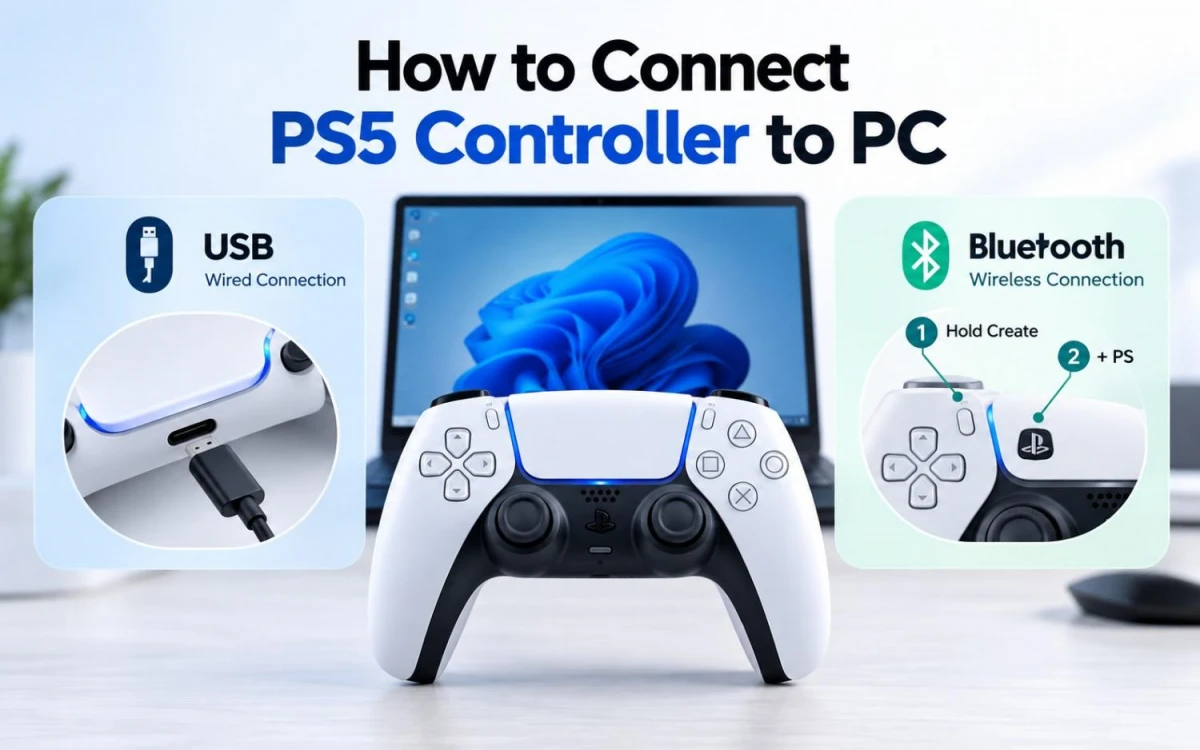
You can connect a PS5 DualSense controller to a Windows PC using either a USB cable or Bluetooth . The connection process is simple, but some games may need additional controller settings. This guide covers both connection methods and the most common fixes.
Quick Method
Method
What You Need
Best For
USB
USB-C data cable
Easy setup and stable connection
Bluetooth
Bluetooth-enabled PC or adapter
Wireless gaming
Connect PS5 Controller to PC With USB
USB is the easiest method.
Steps
Connect a USB-C cable to the DualSense controller.
Connect the other end to your PC.
Wait for Windows to detect the controller.
Open your game and test it.
Make sure you use a data-capable USB cable . Some cables only charge devices and may not transfer controller data.
Connect PS5 Controller to PC With Bluetooth
Your PC needs built-in Bluetooth or a compatible Bluetooth adapter.
Step 1: Turn On Bluetooth
Open Windows Settings > Bluetooth & devices and turn Bluetooth on.
Select the option to add a Bluetooth device.
Step 2: Put the Controller in Pairing Mode
Disconnect the USB cable and turn the controller off.
Then:
Hold the Create button .
While holding it, press and hold the PS button .
Keep holding until the light bar starts flashing.
The Create button is located to the left of the touchpad.
Step 3: Pair the Controller
Open the Bluetooth device list on your PC.
Select the DualSense controller when it appears and complete the pairing process.
USB or Bluetooth: Which Is Better?
Use USB if you want:
A stable connection
No battery concerns
Easier troubleshooting
Better support for some DualSense features
Use Bluetooth if you want:
Wireless gaming
Fewer cables
More freedom to sit away from the PC
Some DualSense features depend on the game and connection type. Sony states that haptic feedback on PC requires a USB connection, while adaptive triggers may also require USB in some games.
How to Use a PS5 Controller With Steam
Steam supports DualSense controllers.
After connecting the controller:
Open Steam.
Open the game you want to play.
Check the game's controller support.
If needed, check the game's Steam Input settings.
Some games support DualSense directly, while others work through Steam Input.
PS5 Controller Connected but Not Working in a Game
If Windows detects the controller but the game does not, the connection may not be the problem.
Try these steps:
Check Game Support
Not every PC game supports DualSense directly.
Check the game's Steam page or official documentation.
Try USB
If you are using Bluetooth, connect the controller with USB and test again.
Check Steam Input
For Steam games, open the controller settings and check whether Steam Input is enabled or required.
Restart the Game
Connect the controller before launching the game.
Some games may not detect a controller that is connected after the game starts.
Controller Charges but PC Does Not Detect It
The USB cable may be the problem.
Try:
A different USB-C data cable
Another USB port
Connecting directly to the PC instead of through a USB hub
Bluetooth Cannot Find the PS5 Controller
Try pairing again:
Disconnect the USB cable.
Turn the controller off.
Hold Create + PS .
Wait for the light bar to flash.
Search for Bluetooth devices again.
If the controller already appears in Windows Bluetooth settings, remove it and pair it again.
Update the PS5 Controller on PC
Sony provides the PlayStation Accessories app for Windows.
You can use it to update DualSense controller firmware.
Keeping the firmware updated can help avoid compatibility and connection problems.
How to Reset a PS5 Controller
If the controller still does not connect, you can reset it.
There is a small reset button on the back of the DualSense controller.
Use a small pin to press the button, then reconnect the controller and try again.
Connect the Controller Back to PS5
To reconnect the controller to your PS5:
Turn on the PS5.
Connect the controller with a USB cable.
Press the PS button .
Wait for it to connect.
Disconnect the cable if you want to use it wirelessly.
Do Adaptive Triggers and Haptic Feedback Work on PC?
Yes, but support depends on the game.
Compatible PC games may support:
Haptic feedback
Adaptive triggers
Built-in speaker
Microphone
Sony states that haptic feedback requires USB on PC. Adaptive triggers may also require USB in some games.
The controller's headset jack also requires a wired connection when used with a PC.
Common Problems and Fixes
Problem
What to Check
Controller charges but is not detected
Use a data-capable USB cable
Bluetooth cannot find the controller
Use Create + PS pairing mode
Controller connects but game does not respond
Check game controller support
Steam game does not recognize it
Check Steam Input
Haptic feedback does not work
Try USB and check game support
Bluetooth keeps disconnecting
Test with USB
Controller still does not connect
Update firmware or reset it
FAQs
Can you connect a PS5 controller to a PC?
Yes. You can connect a DualSense controller through USB or Bluetooth.
Do I need software?
Not for basic USB or Bluetooth connection.
Some games may use Steam Input, and Sony's PlayStation Accessories app can update the controller firmware.
Why is my PS5 controller connected but not working?
The game may not support DualSense directly. Check the game's controller support and Steam Input settings.
Can I use a PS5 controller wirelessly on PC?
Yes. Put the controller into Bluetooth pairing mode using Create + PS , then pair it through Windows.
Does the PS5 controller headphone jack work on PC?
Yes, but Sony states that the headset jack requires a wired connection on PC.
Is USB or Bluetooth better?
USB is easier for troubleshooting and supports some DualSense features that may not work over Bluetooth. Bluetooth is better when you want wireless gaming.
Final Checklist
For the easiest setup, connect the DualSense with a USB-C data cable and test it in your game.
For wireless gaming, hold Create + PS until the light flashes, then pair the controller through Windows Bluetooth settings.
If the controller connects to Windows but does not work in a game, check the game's controller support and Steam Input settings before changing the connection again.






Leave a comment