Move the laptop to a hard, flat surface so the vents stay open.
✓
Close unnecessary apps and restart the laptop if CPU usage remains high.
✓
Switch from a performance mode to Balanced or a quieter power mode.
✓
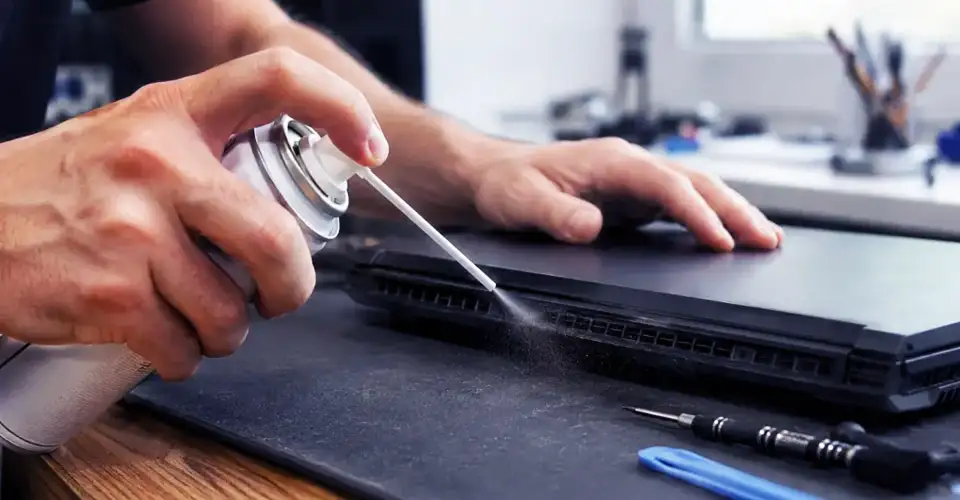
Turn the laptop off and unplug it before cleaning visible vents with canned compressed air.
!
Stop using it immediately if you notice battery swelling, smoke, a burning smell, or repeated shutdowns.
Your laptop feels unusually hot, the fan is loud, and performance drops in the middle of your work. That can be frustrating, but it does not always mean the laptop is damaged. Gaming, video editing, software updates, charging, and other demanding tasks naturally create more heat.
The real concern starts when the laptop becomes excessively hot during light use, slows down repeatedly, freezes, shows a fan or thermal warning, or shuts down without warning. In Bangladesh, hot rooms and faster dust buildup can make these problems appear sooner, especially when vents are blocked or the cooling system has not been cleaned for a long time.
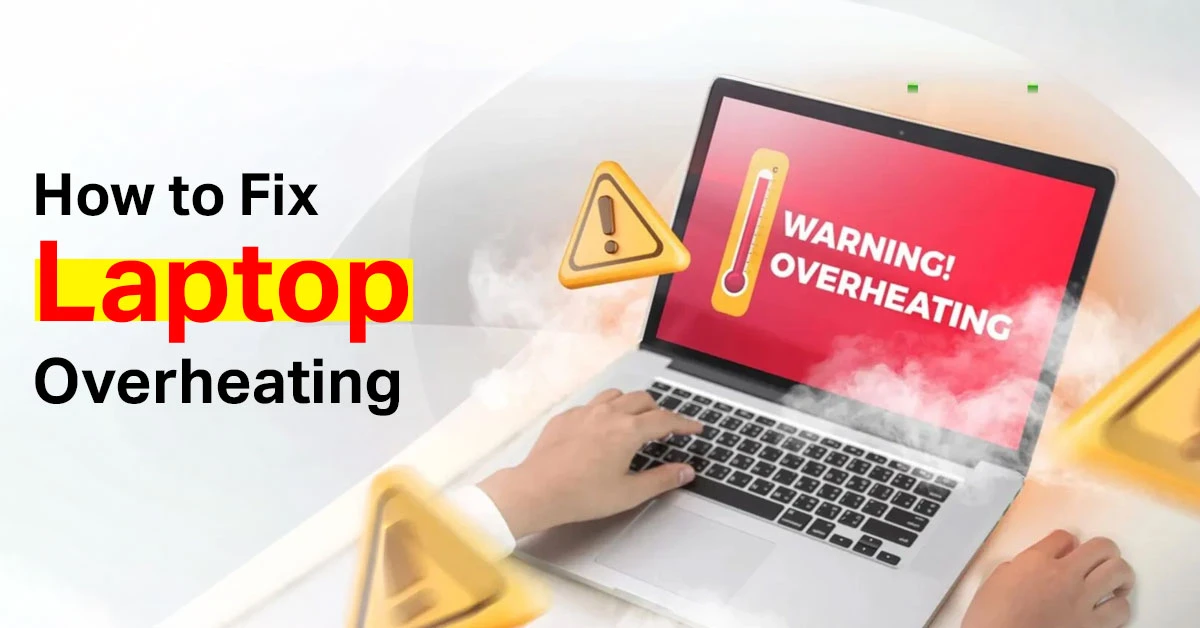
This guide explains how to fix laptop overheating in a safe order. Start with the simple checks, then move to servicing only when the symptoms point to an internal problem.
Is Your Laptop Actually Overheating?
A warm keyboard, hot air coming from the exhaust, or a faster fan during gaming can be normal. Modern laptops adjust fan speed according to CPU and GPU load. Instead of judging by heat alone, look at the pattern and the symptoms.
Usually Normal
Possible Overheating Problem
Fan becomes louder during gaming, rendering, or an update
Unexpected shutdowns, restarts, freezes, or thermal warnings
Warm palm rest or exhaust area while charging
Excessive heat during light browsing or when the laptop is idle
Performance returns to normal after the heavy task ends
Performance stays slow because the processor repeatedly reduces speed
Hot air exits through the vent
Little or no airflow, a fan error, or grinding and rattling noises
Temperature limits vary by model, processor, and workload. A monitoring app can provide context, but repeated shutdowns, fan errors, swelling, burning smells, and unusual heat during light work matter more than one isolated temperature reading.
How to Fix Laptop Overheating: Start Here
Follow these steps in order. Stop once the problem is solved. There is no need to open the laptop before completing the safer external checks.
Move it to a hard surface
Place the laptop on a desk, table, or sturdy stand. Keep papers, fabric, bedding, and other objects away from the intake and exhaust vents.
Save your work and restart
A restart closes stuck background processes and reloads system services. This is more useful for troubleshooting than leaving the laptop in sleep mode.
Check what is using the processor
Close only the apps you recognize and do not need. High CPU or GPU usage creates more heat, even when the laptop appears idle.
Use Balanced power mode
Performance or turbo modes can keep the processor running harder than necessary. Balanced mode is often enough for browsing, office work, classes, and video calls.
Inspect and clean the external vents safely
Turn the laptop off, disconnect the charger, and use short bursts of canned compressed air according to the can instructions. Do not use a household vacuum, high-powered blower, or your mouth.
Install model-specific updates
Check the laptop manufacturer’s official support page for BIOS, firmware, chipset, graphics, and thermal-management updates. Keep the charger connected during a BIOS update and follow the manufacturer’s instructions carefully.
Run the manufacturer’s hardware diagnostics
Many laptop brands include fan, battery, and system tests. Use these before assuming the fan or thermal paste needs replacement.
Book servicing if the symptoms continue
Grinding sounds, no airflow, fan errors, repeated shutdowns, swelling, or excessive heat after the earlier steps usually require internal inspection.
Common Reasons a Laptop Overheats
Blocked Airflow
Soft surfaces are one of the most common causes of laptop heat problems. Many laptops pull cool air from the bottom and release warm air through the sides or rear. A bed, pillow, blanket, sofa, or pile of papers can block those openings.
What to Do
✓
Inspect the vents regularly and clean them when visible dust appears or airflow becomes weaker.
✓
Shut down and unplug the laptop before using canned compressed air.
!
Keep the can upright and follow its instructions. Liquid propellant can damage the device if the can is used incorrectly.
✓
Arrange professional internal cleaning when external cleaning does not restore airflow or temperatures remain unusually high.
Dust in the Vents, Fan, or Cooling Fins
Dust and lint restrict airflow and make the fan work harder. This can happen faster in dusty rooms, near open windows, beside roads, or in workspaces where construction dust is common. Cleaning only the visible vent may not remove a thick blockage inside the cooling fins.
What to Do
✓︎
Use a hard, flat surface whenever the laptop is running.
✓︎
A laptop stand can create more clearance under bottom intake vents.
✓︎
A cooling pad may help during gaming or long workloads, especially when the laptop draws air from underneath.
!
Do not keep using the laptop on your lap when the base feels uncomfortably hot.
Background Apps and High CPU Usage
A browser tab, cloud-sync app, antivirus scan, operating-system update, or stuck program can keep the processor busy. The laptop may feel hot even when you are not actively doing anything.
On Windows
1
Press Ctrl + Shift + Esc to open Task Manager.
2
Open Processes and select the CPU column to sort by usage.
3
Save your work, then close unnecessary apps or browser tabs you recognize.
4
Open Startup apps and disable only nonessential programs you recognize.
On macOS
1
Open Activity Monitor from Applications > Utilities.
2
Select the CPU tab and sort by % CPU.
3
Quit an application only after saving your work and confirming that you recognize it.
Heavy Workload
Gaming, rendering, video editing, large spreadsheets, virtual machines, and many browser tabs can push the CPU and GPU for long periods. More power use creates more heat, and compact laptops have less cooling space than desktops.
What to Do
✓
Close apps and tabs that are not needed for the current task.
✓
Reduce game graphics, frame-rate limits, render quality, or export settings when maximum performance is unnecessary.
✓
Use the laptop in a cooler room with open space around the vents.
!
A cooling pad can improve airflow, but it cannot repair a blocked heatsink or damaged fan.
Power and Performance Settings
High Performance, Turbo, or similar modes may keep the processor at higher power levels. That can be useful for demanding work, but it can also create unnecessary heat during browsing, study, office work, and video calls.
What to Do
✓
Use Balanced or the manufacturer’s Standard mode for everyday tasks.
✓
Use Silent mode when low noise and lower heat matter more than maximum speed.
✓
Update BIOS and thermal-management software only from the official support page for the exact laptop model.
!
Do not change unfamiliar BIOS fan controls unless the manufacturer documents the setting.
Fan Problem
A damaged fan may spin slowly, stop intermittently, or make grinding, scraping, clicking, or rattling sounds. A fan can also run loudly because the vents are blocked, so noise alone does not prove the fan is broken.
What to Do
✓
Check whether warm air is leaving the exhaust during a demanding task.
✓
Run the manufacturer’s fan or hardware diagnostic if available.
!
Arrange repair when the fan reports an error, makes mechanical noises, or does not spin reliably.
!
Treat a cooling pad only as temporary support. It does not replace a faulty internal fan.
Thermal Paste or Heatsink Contact
Thermal compound helps transfer heat from the CPU or GPU to the heatsink. Its condition can worsen over time, but there is no universal replacement schedule for every laptop. High temperatures after vent cleaning may also come from a weak fan, blocked internal fins, poor heatsink contact, firmware, or another hardware issue.
What to Do
✓
Consider thermal-paste inspection only after simpler airflow, software, update, and fan checks have been completed.
✓
Use a technician who can clean the heatsink, inspect mounting pressure, and apply the correct amount of compound.
!
Avoid opening a laptop that is under warranty unless the manufacturer’s service policy allows it.
Hot Room or Direct Sunlight
A laptop cannot cool below the temperature of the surrounding air. A hot room, direct sunlight, a closed shelf, or poor ventilation reduces the cooling system’s ability to release heat.
What to Do
✓
Move away from direct sunlight and heat-producing appliances.
✓
Leave open space around the laptop, especially near the side and rear exhaust vents.
✓
Use a fan or a cooler part of the room when possible.
✓
Allow a very hot laptop to cool before placing it in a bag.
Battery or Internal Fault
A swollen battery, damaged charging circuit, faulty sensor, liquid damage, or motherboard problem can also create unusual heat. These issues are less common than blocked airflow, but they require faster action.
Stop using the laptop when you notice
The bottom cover is bulging or the trackpad is lifting.
The lid no longer closes properly because the case has changed shape.
A burning smell, smoke, sparking, or a discoloured area near the keyboard or vents.
Repeated shutdowns or charging heat that appears suddenly during light use.
!Safety Warning
Turn the laptop off, unplug the charger, and keep it away from flammable materials. Do not press on, puncture, bend, or attempt to remove a swollen battery unless you are trained and the manufacturer’s service instructions permit it.
Why Laptop Heat Problems Can Appear Faster in Bangladesh
The most relevant local factors are high room temperature, dust, and the way laptops are commonly used. Dust can collect faster near busy roads, construction areas, open windows, and non-air-conditioned rooms. During hot weather, the cooling system has less temperature difference available to release heat. Using the laptop on a bed during study, work, or entertainment can make the situation worse by blocking the intake vents.
Power instability is a separate concern rather than a direct cause of most overheating. Use the original or a correctly rated compatible charger, replace damaged cables or adapters, and consider suitable power protection where voltage fluctuations are common.
Daily Habits That Help Keep a Laptop Cool
Habit
Why It Helps
Use a hard, open surface
Keeps intake and exhaust vents clear.
Restart when the system stays busy
Closes stuck processes and reloads background services.
Keep the area around vents clean
Reduces how quickly dust and lint reach the cooling system.
Use Balanced mode for normal work
Avoids unnecessary processor power and heat.
Do not put a hot or sleeping laptop straight into a bag
Prevents trapped heat and accidental operation inside the bag.
Use the correct charger
Avoids charging problems caused by damaged or incorrectly rated adapters.
Keep software, drivers, and BIOS current
Can resolve bugs involving power, fan, or thermal management.
Check airflow when the fan becomes louder
Helps you catch blocked vents before shutdowns begin.
When Should You Service Your Laptop?
Professional servicing is the better choice when the problem points to an internal cooling or electrical fault rather than a simple software or airflow issue.
Mechanical fan noise: Grinding, scraping, clicking, or rattling can indicate worn bearings or contact with debris.
No airflow or a fan error: The fan may not be spinning correctly, or the cooling path may be blocked internally.
Repeated shutdowns or thermal warnings: Do not wait for a fixed number of incidents. Repeated shutdowns deserve investigation.
Very high heat during light use: This can indicate a stuck process, failed fan, blocked heatsink, battery fault, or poor heatsink contact.
Swelling, smoke, smell, or visible heat damage: Stop using the device immediately and arrange safe inspection.
The problem continues after basic troubleshooting: A technician can test the fan, battery, sensors, heatsink, and motherboard more safely.
Should You Repair or Replace the Laptop?
Age alone should not decide this. A four-year-old laptop may still be worth repairing, while a newer laptop with several expensive failures may not be. Compare the repair cost, current performance, condition, and how well the device still meets your needs.
Repair Usually Makes Sense When
Replacement May Be Better When
The issue is limited to cleaning, a fan, or thermal servicing
Several major parts are failing together
The laptop still handles your regular work well
The laptop no longer supports the software or workload you need
Replacement parts are available at a reasonable cost
Repair cost is high compared with the device’s present value
Battery, display, keyboard, hinges, and storage are still in good condition
Battery, display, hinges, keyboard, and storage also need costly work
When replacement is the more practical choice, compare current models in theAll Laptop Category or browse Laptop Brands if you already have a preferred brand in mind.
What Not to Do
× Do not use the laptop on a bed, pillow, blanket, sofa cushion, or pile of papers while it is running.
× Do not use a household vacuum, high-powered air blower, or your mouth to clean the vents.
× Do not invert a compressed-air can or spray liquid propellant into the laptop.
× Do not open a laptop under warranty without checking the manufacturer’s service policy.
× Do not download BIOS files, fan-control tools, or drivers from unknown websites.
× Do not ignore swelling, smoke, a burning smell, fan errors, grinding noises, or repeated shutdowns.
Frequently Asked Questions
Is it safe to use a laptop in bed?
Not directly on the bedding. Soft material can block the bottom or side vents. Use a hard tray, laptop table, or stand that keeps the airflow openings clear.
Is loud fan noise always a sign of overheating?
No. The fan may become louder during gaming, rendering, video calls, software updates, or other demanding tasks. Grinding, rattling, fan errors, no airflow, or loud fan activity during light idle use deserve closer attention.
Can overheating damage a laptop?
Modern laptops can reduce performance or shut down to protect themselves, but repeated excessive heat can still cause instability and place additional stress on the battery and internal components.
Does a cooling pad really help?
It can improve airflow and reduce surface temperature, especially on laptops with bottom intake vents. It will not fix a broken fan, clogged internal heatsink, swollen battery, or poor heatsink contact.
When should thermal paste be replaced?
There is no fixed schedule for every laptop. Consider inspection when temperatures remain unusually high after airflow, software, update, and fan checks, or when the heatsink has been removed during servicing.
Why does my laptop become hot while charging?
Charging creates some heat, and many laptops also allow higher performance while plugged in. Mild warmth can be normal. Sudden excessive heat, swelling, a damaged charger, or repeated shutdowns is not normal.
Is compressed air safe for laptop vents?
Yes, when the laptop is shut down and unplugged, and the can is used according to its instructions. Keep the can upright and avoid vacuums, high-powered blowers, or spraying liquid propellant.
Why is my laptop hot when no apps are open?
Background updates, cloud sync, antivirus scans, browser processes, or a stuck app may still be using the CPU. Check Task Manager on Windows or Activity Monitor on macOS.
Should I rely on a temperature-monitoring app?
Use it as one clue, not the only diagnosis. Limits vary by model and workload. Compare readings under similar conditions and pay attention to shutdowns, throttling, fan errors, and heat during light use.
When should I stop using the laptop immediately?
Stop when you notice battery swelling, smoke, sparking, a burning smell, visible heat damage, or repeated shutdowns with abnormal heat. Turn it off, unplug it, and arrange professional inspection.
Bottom line
Start with airflow, background activity, power mode, safe vent cleaning, and official updates. Servicing becomes necessary when the fan is damaged, the internal cooling path is blocked, thermal warnings continue, or there are battery and electrical warning signs.















Leave a comment