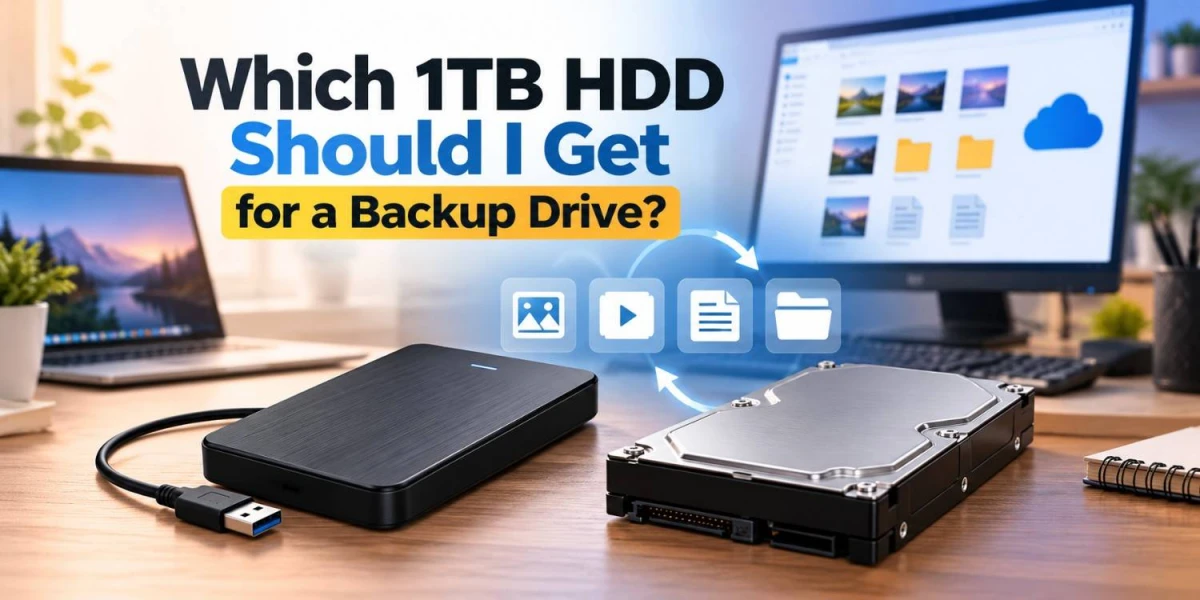
A 1TB HDD can be a practical choice for backup if you want affordable storage for personal files, photos, videos, office documents, and older projects. The right option depends less on the storage size and more on how you plan to use the drive.
For a desktop that stays in one place, a 1TB internal HDD may be enough. If you want to back up a laptop, move files between computers, or store the drive separately after use, a 1TB external hard drive for backup is usually more convenient.
Is 1TB Enough for Backup?
For many people, yes.
A 1TB backup drive can hold a large collection of documents, photos, videos, and project files. However, you should also consider how much data you have now and how quickly it is growing.
If your current files already take up most of 1TB, buying a larger drive may make more sense. Backup storage works better when you leave some free space instead of filling the drive completely.
1TB Internal HDD vs External HDD
The first decision is whether you need an internal or external drive.
1TB Internal HDD
An internal HDD is installed inside a desktop computer and usually connects through SATA.
It can be a good choice when:
You mainly back up one desktop PC
You do not need to move the drive often
Your PC has a free drive bay and SATA connection
You want a dedicated secondary drive for files
For example, you can keep Windows and applications on an SSD while using a 1TB internal HDD for photos, documents, downloaded files, and archived projects.
1TB External HDD
An external HDD connects through USB and does not need to be installed inside the computer.
It is usually better when:
You use a laptop
You back up more than one computer
You want to disconnect the drive after backup
You need to carry files between home and office
You want a simple plug-and-use backup option
For many users, an external HDD is the easier choice because it is portable and does not require opening the computer.
Which 1TB HDD Fits Different Backup Needs?
Backup Need
Better Option
Why
Desktop backup
3.5-inch internal HDD
Easy to keep inside the PC
Laptop backup
External HDD
Simple USB connection
Photos and videos
Internal or external HDD
Both work well for general storage
Office documents
External HDD
Easy to disconnect and store safely
Large project files
Faster HDD or external drive with USB 3.x
Better for frequent file transfers
Long-term file storage
External HDD
Can be stored separately from the computer
Moving files between computers
Portable external HDD
Easy to carry and connect
There is no single best 1TB HDD for backup for every user. The best choice depends on where and how you plan to store your files.
2.5-Inch vs 3.5-Inch HDD
The physical size of the drive also matters.
2.5-Inch HDD
A 2.5-inch HDD is smaller and is commonly used in portable external drives and some laptops.
It is useful if portability is important.
3.5-Inch HDD
A 3.5-inch HDD is larger and is commonly used in desktop computers.
It is generally the more natural choice for a 1TB internal HDD in a desktop system.
If you are buying an external drive, you usually do not need to worry much about the internal form factor unless you are comparing specific enclosure types.
SATA vs USB Connectivity
Internal and external HDDs use different types of connections.
SATA
SATA is commonly used by internal HDDs.
Before buying, make sure your desktop has:
A free SATA data port
A SATA power connector
Enough physical space for the drive
USB
External drives usually connect through USB.
For backup, USB is more convenient because you can connect the drive only when you need it.
Why USB 3.x Matters
If you are buying an external hard drive for file backup, choose one with USB 3.x support when possible.
USB 3.x provides more bandwidth than older USB standards, which can help when copying large amounts of data.
However, the HDD itself has speed limits. A fast USB port does not mean the drive will automatically reach the maximum speed advertised for the connection.
Still, USB 3.x is useful because it avoids the connection becoming an unnecessary bottleneck.
5400 RPM vs 7200 RPM
RPM refers to how fast the internal platters rotate.
5400 RPM
A 5400 RPM drive is often suitable for:
General backup
Photos
Documents
Videos
Archive storage
For simple backup use, this can be perfectly adequate.
7200 RPM
A 7200 RPM drive may be more useful if you:
Copy large files frequently
Work with large project folders
Want faster read and write performance
RPM should not be the only factor you consider. Drive design, workload, recording technology, interface, and reliability also matter.
CMR vs SMR
Some HDDs use CMR recording, while others use SMR.
CMR
CMR drives are generally better suited to workloads where you regularly write, delete, and rewrite large amounts of data.
They can be a better fit for more active backup routines.
SMR
SMR drives can work well for lighter backup use, especially when you mainly copy files to the drive and do not constantly rewrite them.
The main difference is that SMR drives may slow down during heavier or repeated write operations.
For casual home backup, either may work depending on the model and workload. If you regularly move large datasets, it is worth checking the recording technology before buying.
How Important Is Transfer Speed?
Transfer speed matters most when you back up large files frequently.
For example, copying a few office documents does not require a high-performance drive. Moving hundreds of gigabytes of video footage is different.
If your backup includes large video files, design projects, or work archives










Leave a comment